Event Categories
Event categories let you group related events so you can display, filter and link them together — a festival’s individual stages, a conference’s parallel tracks, a tour’s various dates, a venue’s recurring genres. Categories work like WordPress post categories but live alongside Tickera events. Once tagged, events can be surfaced by category in the Event Listing add-on, in calendar widgets, and via shortcode.
Why event categories matter?
If you’re running more than a few events, keeping things organized becomes essential. That’s where Event Categories come in. They let you neatly group your events by type, topic, or any other criteria that make sense for your website – just like post categories do in WordPress.
So whether you’re managing concerts, seminars, trade shows, or online classes, categories make it easier for both you and your visitors to find what they’re looking for.
Getting started
From your WordPress dashboard, go to Tickera -> Event Categories.
You’ll land on a simple page that lets you create, edit, and manage your categories.
If you’ve ever used WordPress post categories, you’ll feel right at home here.
Let’s go through each field.
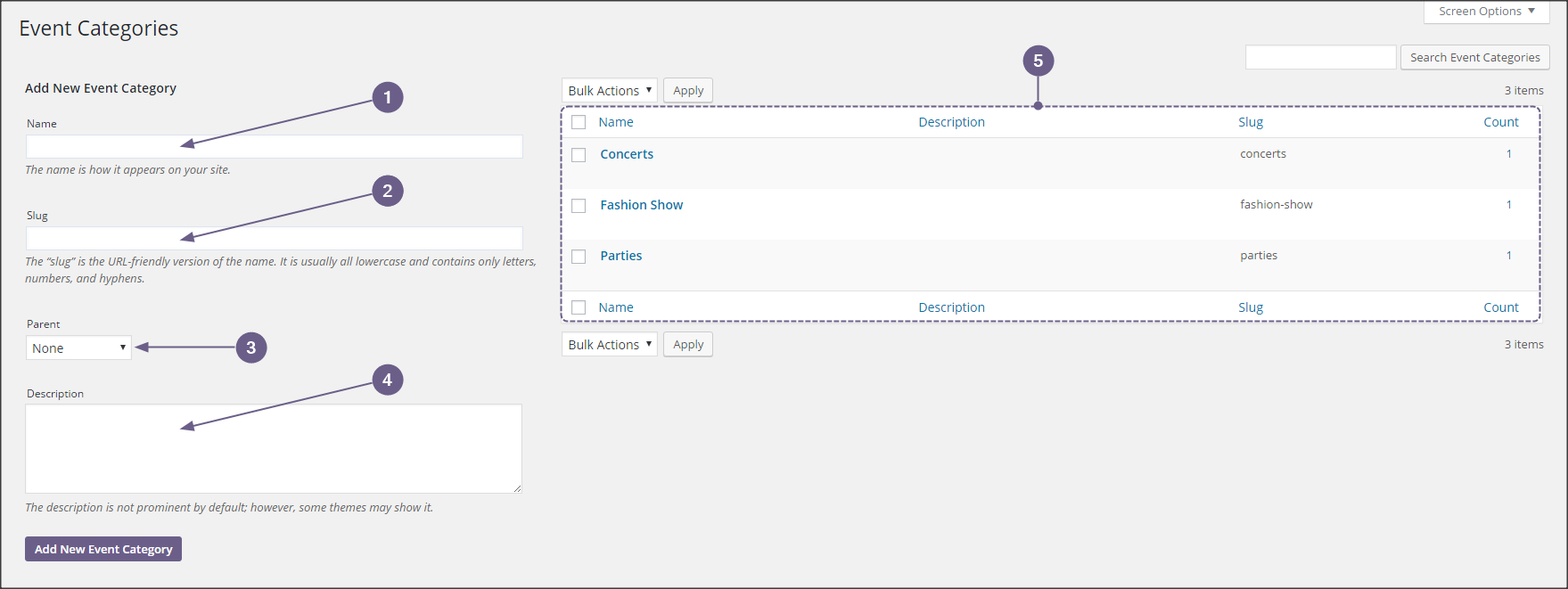
- Name of the event category – Enter the name of your event category – for example: Concerts, Webinars, Shows, Expos, Festivals, Workshops… This is the name that will appear wherever the category is displayed.
- Slug – This is the URL-friendly version of your category name, usually all lowercase and using hyphens instead of spaces. For example, the slug for “Online Classes” would be online-classes.Tip: Slugs come in handy when you want to list or filter all events within a single category (for instance, https://yourdomain.com/event-category/concerts/).
- Parent – If your event structure calls for a hierarchy, this is where you can define it.For example:
• Parent category: Concerts
• Child categories: Classical, Jazz, Rock, LoungeThis helps you keep related events grouped under a broader theme. - Description – This field is completely optional. Most themes won’t display category descriptions, but a few might. If you’re using a theme that supports it, you can add a short explanation about what that category covers.
- Table of existing event categories – This is where, you will find a table listing all your existing event categories.Here, you can:
• View all categories at a glance
• Edit or delete them
• Use the search field to quickly find specific onesIf you’re just starting out, this table might be empty — but as your event lineup grows, it’ll become one of your best organizational tools.
Related questions
Was this article helpful?
Yes — great. No or partially? Tell us what was missing — we read every message and use it to improve these docs.