Custom Ticket Template Fonts
The Custom Ticket Template Fonts add-on lets you use any TrueType font on your PDF tickets — your event’s brand font, a custom display typeface for the event name, a script font for the attendee name. By default Tickera ships a few standard fonts; this add-on opens it up so the printed ticket matches your overall brand instead of looking generic.
The Custom Ticket Template Fonts add-on lets you use your own fonts within Tickera’s ticket template builder, giving your tickets a unique and fully branded look. Whether you’re aiming for something elegant, bold, or playful, this add-on makes it easy to upload and apply any font you want.
Setting up the add-on
Once you install and activate the Custom Ticket Template Fonts add-on, a new tab labeled Custom Ticket Fonts will appear in your Tickera Settings area.
When you open it, you’ll see a simple, straightforward interface that allows you to add and manage your fonts.
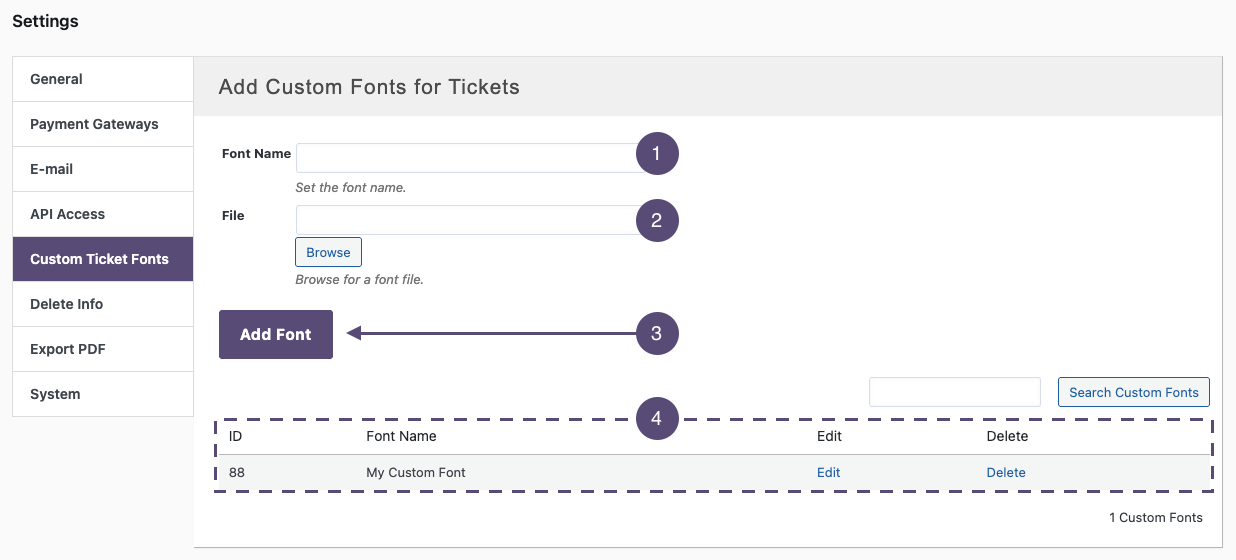
Here’s how to add your custom font:
- Font Name – Enter a name for the font you’re adding. This is how it will appear later in the ticket template font dropdown.
- Upload Font File – Click the Browse or Upload button to select a font file from your computer. The font must be in .ttf (TrueType Font) format.
- Add New Font – Once uploaded, click Add New to register your font.
- After that, your font will appear in the table below. If you’re just starting out, it’s completely normal for this table to be blank.
Using your custom font in a ticket template
Now that your font is uploaded, head over to the Ticket Templates section of Tickera.
When the page loads, open or create a new ticket template, and in the Font dropdown menu, you’ll find your newly added custom font ready to use.

Once selected, all text-based elements in your ticket template can use your custom font, giving your tickets a distinct visual identity that matches your brand or event style.
Finding free and safe fonts
If you don’t already have a font in mind, there are many reputable websites where you can safely download free .ttf fonts suitable for use with Tickera. A few well-known sources include:
- Google Fonts
A massive collection of free, open-source fonts, ideal for consistent branding across web and print. - Font Squirrel
Offers free fonts that are specifically licensed for commercial use. - DaFont
A wide range of creative and decorative fonts, but always check the license for commercial use before applying them to your event materials.
When choosing a font, aim for readability and clarity, especially if your ticket design includes small print or detailed information.
Troubleshooting and important notes
- Make sure the folder tickera/tcpdf/fonts on your server is writable. If this folder doesn’t have write permissions, you might encounter errors when trying to upload new fonts.
- Not all fonts are created equal — some may not display properly when converted to PDF. If your font doesn’t render correctly, try using another variation or a different typeface altogether.
- For best performance, keep your font files lightweight (under 1 MB if possible).
Related questions
Was this article helpful?
Yes — great. No or partially? Tell us what was missing — we read every message and use it to improve these docs.