– Bulk download of all tickets from a single order
A practical recipe for downloading all tickets from a single order in one go — useful when a customer buys 10 tickets at once and wants them as one PDF (or as a zip of all individual ticket PDFs) instead of opening 10 separate download links. Common for group bookings, family purchases and corporate bulk orders.
By default, Tickera generates and delivers each ticket as a separate file. This works perfectly in most cases. However, when a customer purchases multiple tickets within a single order, they sometimes prefer to download all tickets at once instead of clicking each “Download” link individually.
This solution adds exactly that option.
With this small add-on installed, customers can download all tickets from a single order as one compressed .zip file – directly from the order details page and from the purchase confirmation email.
What this solution does
After installing and activating the add-on:
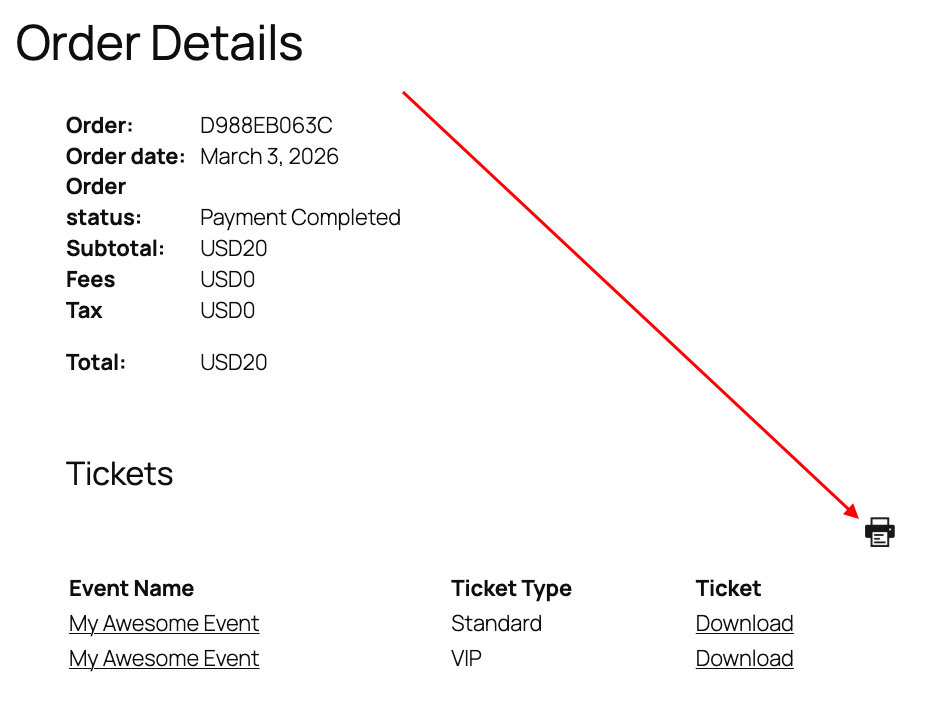
- A print icon appears on the Order Details page (after successful order completion).
- The same print icon appears in the email sent to the ticket buyer.
- When clicked, Tickera collects all tickets from that specific order.
- All tickets are packed into a single .zip archive.
- The archive is automatically downloaded to the customer’s device.
Each ticket inside the archive remains a standard Tickera ticket file.
This solution only affects the ticket buyer (the person who completed the order). It does not apply to attendee emails.
Important note about attendee emails
If attendee fields are enabled and you are sending tickets directly to attendees, each attendee receives only their individual ticket. Since they receive a single ticket file, the bulk download option is not displayed in attendee emails.
When to use this solution
This solution is ideal if:
- Customers frequently purchase multiple tickets in one order.
- You receive support requests asking how to download all tickets at once.
- Your events include tables, group seating, or family bookings.
- You want to simplify the post-purchase experience.
It is not necessary for events where customers typically purchase a single ticket per order.
This solution works regardless of whether you’re running Tickera as a standalone or alongside WooCommerce via Bridge for WooCommerce.
One more thing…
If you’re looking to further improve how tickets are delivered and handled after purchase, there are two additional solutions worth mentioning.
First, the Content management for table of purchased tickets solution allows you to customize the table that is sent to the ticket buyer via email. You can control which columns are displayed, what information appears, and even include the QR code directly inside the table. This gives customers the option to simply present the email itself at the entrance without needing to download separate ticket files.
Second, if your goal is to allow quick printing without downloading files first, there is also a solution that adds a print icon next to each ticket in the table of purchased tickets. This works directly from the Order Details page as well as from the back end in the Attendees & Tickets area, allowing tickets to be printed individually with a single click.
Combined with the bulk download option described above, these solutions give you full control over how tickets are accessed, downloaded, and printed.
Related
Was this article helpful?
Yes — great. No or partially? Tell us what was missing — we read every message and use it to improve these docs.