Custom mobile zoom level for seating charts
A short customization recipe for changing the default zoom level of the Seating Charts interface on mobile devices — useful when your venue layout is dense and the default mobile zoom either crops too much or shows too little detail. Drop a small filter into your theme’s functions.php (or a custom plugin) and you can tune the mobile experience without forking the add-on.
By default, seating charts in Tickera use a predefined zoom behavior on mobile devices. In most cases this works well, but depending on the seating layout, density, and screen size, you may want more control over how the chart is displayed when viewed on smaller screens.
This solution adds that control.
With this small add-on installed, you can define custom zoom levels for specific mobile screen widths directly from the Tickera settings area.
What this solution does
Once the add-on is installed and activated, a new section called Mobile Zoom Level will appear in Tickera -> Settings -> Seating Charts
This allows you to:
- Define mobile screen width breakpoints (in pixels)
- Set a custom zoom scale percentage for each breakpoint
- Add as many breakpoints you want or need
The zoom level will automatically apply when a visitor’s screen width matches the defined values.
How to configure mobile zoom levels
After activation:
- Go to Tickera -> Settings -> Seating Charts.
- Scroll to the Mobile Zoom Level section.
- Click the plus icon to add a new breakpoint.
- Enter:
- Width (screen width in pixels)
- Scale (zoom percentage)
- Save changes.
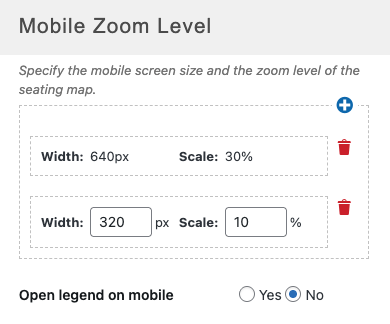
You can define multiple width/scale combinations. For example:
- 640px -> 30%
- 320px -> 10%
Tickera will apply the matching zoom level based on the visitor’s screen width.
When to use this solution
This solution is ideal if:
- Customers report that the seating map is too small on mobile.
- The chart appears too zoomed in and requires excessive panning.
- You are working with very large or very detailed seating layouts.
- You want precise control over the mobile seating experience.
If your current seating display works well across devices, this add-on is not required.
One more thing…
If you’re fine-tuning mobile seating behavior, you may also want to review some of the related settings already available under Tickera -> Settings -> Seating Charts.
For example, the Disable Zoom option controls whether pinch-to-zoom applies to the entire page or only to the seating chart area. This add-on does not replace that option but gives you additional control over the initial zoom level on mobile breakpoints.
If you’re working with very detailed or complex venue layouts, we also recommend reviewing our guide on Creating large and elaborate seating chart layouts.
Carefully structuring large seating maps can significantly improve both desktop and mobile usability. And when combined with custom mobile zoom levels, it gives you much better control over the overall experience.
Related
- Seating Charts add-on
- Creating a large, elaborate seating chart layout
- I want to sell tickets with seat reservations
Was this article helpful?
Yes — great. No or partially? Tell us what was missing — we read every message and use it to improve these docs.