Interactive seating chart for your
WordPress event site.
Let your attendees choose the best seats for your show. Create floor plans of your venue with a simple drag-and-drop interface. Mix seating sections with standing areas and tables, color-code by ticket type, and let buyers pick their seat on a live chart.
- Drag-and-drop chart builder — move, resize, rotate any element
- Seating sections, standing areas and tables — all in one chart
- Real-time availability via Google Firebase — see what’s in someone’s cart, live
- Compatible with Bridge for WooCommerce
Everything you need
to run a floor plan.
Drag & drop layout
Freely move around any and all of the elements to create a floor plan that truthfully resembles your venue. What you create is exactly what customers will see.
Seating groups
Easily create, manage and edit seating groups on the fly. Set or unset ticket types, edit rows and columns, and move them wherever you need.
Standing areas
Hosting an event without seating, or a concert with various standing areas? Draw standing areas with a few clicks and assign ticket types.
Tables
Round or square, any color. Create tables and assign seats around them however you like — for banquets, galas, dinner shows.
Seat labels
Label each seat differently or select multiple seats and let Tickera label them automatically. Your attendees will know exactly where they need to go.
Areas of interest
Mark entrances, exits, restrooms, food and drink stands. Help attendees get around the venue easily.
Text areas
Label aisles, add additional information — you can use them for whatever you want.
Zoom & pan
Navigate big venues with mouse-wheel zoom and on-screen pan controls. The same smooth experience reaches your customers on the buying page.
Shortcode or block
Once your chart is ready, place it anywhere with a shortcode or a Gutenberg block — on pages, posts, wherever you need it.
What the editor
actually does.
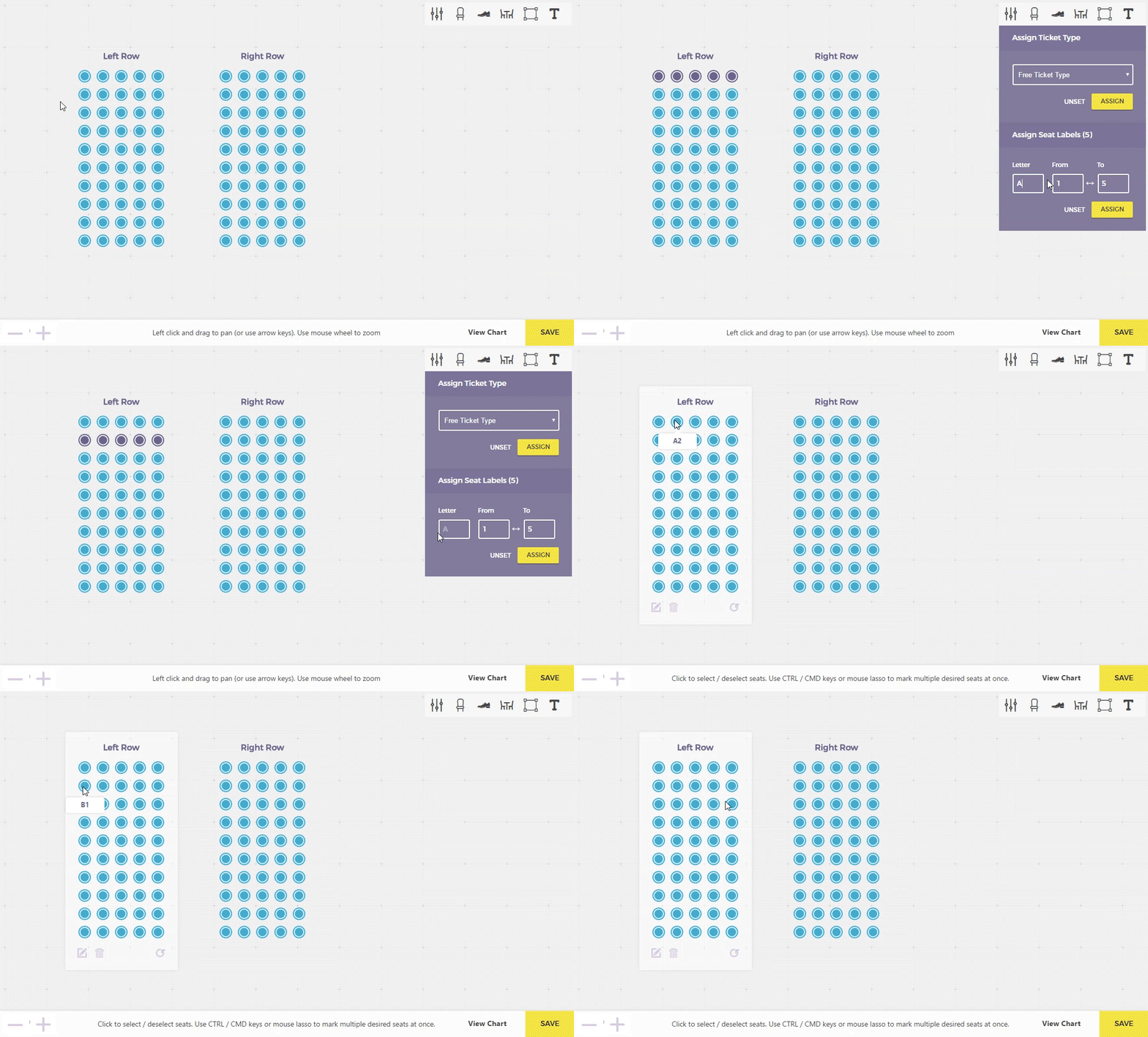
Move, resize, rotate, zoom.
Building seating charts is quick and intuitive with the drag-and-drop interface. Move, resize, rotate, zoom — it’s all there and ready to use.

Edit groups on the fly.
Create, manage and edit seating groups. Set or unset ticket types, edit rows and columns, move groups wherever you need them.

Manual or automatic.
Label each seat differently — or select multiple seats and let Tickera label them automatically. Either way your attendees know exactly where to go.
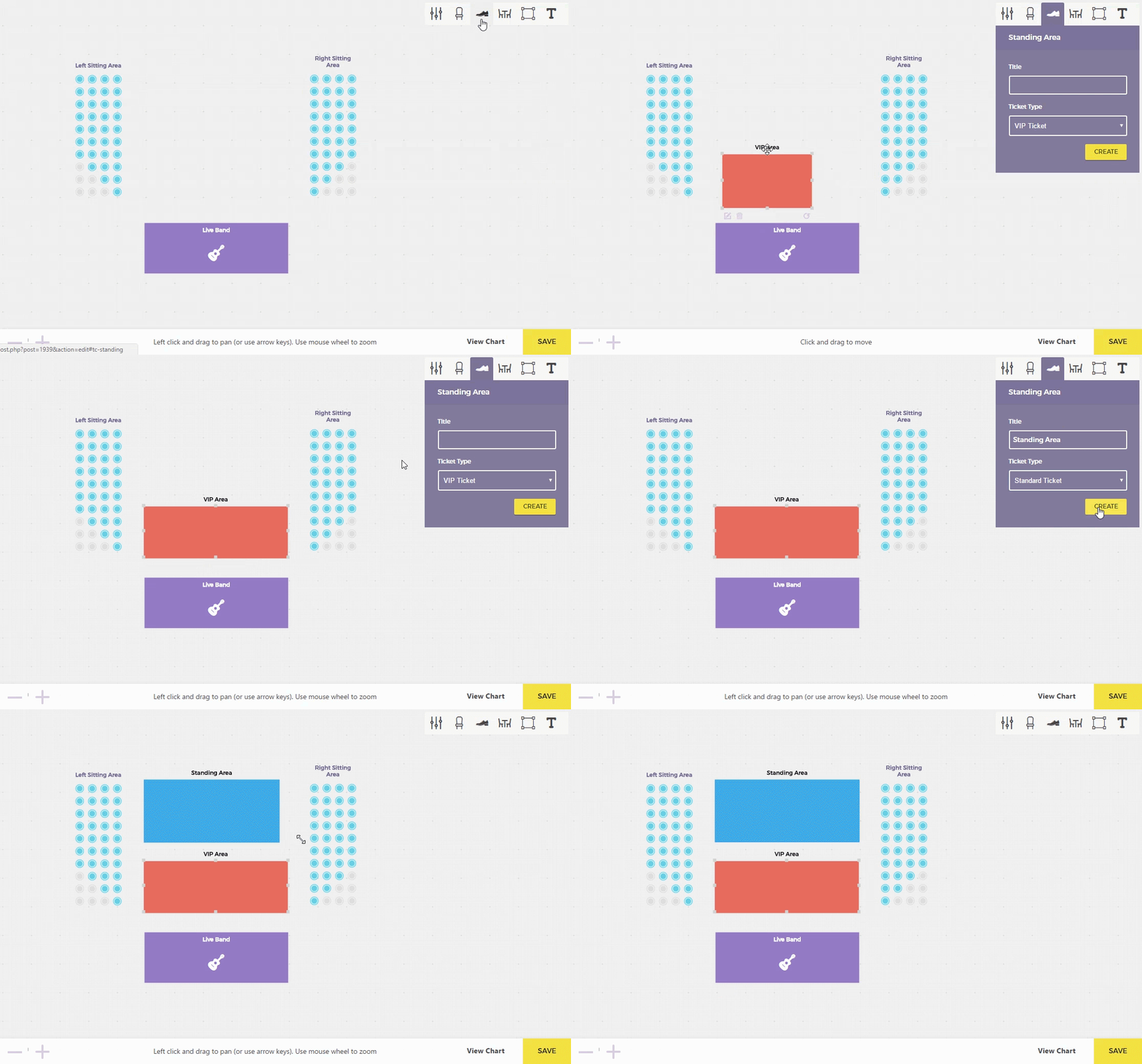
For events with no seats.
Concerts, festivals or any event with separate standing zones — draw an area, assign ticket types, done.
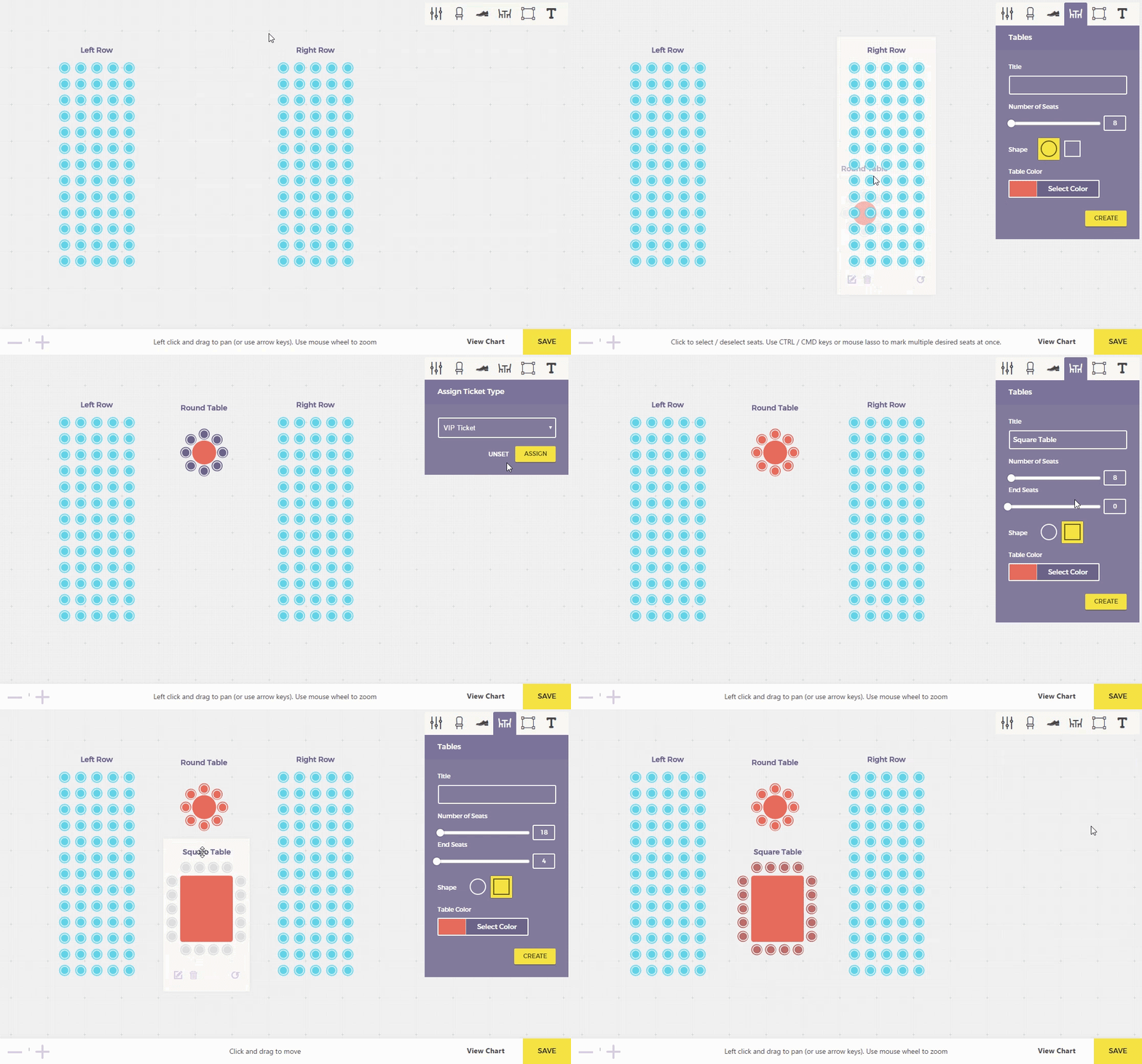
For banquets and dinner shows.
Drop a round or square table, assign seats around it. Mix tables with seating sections in the same chart.
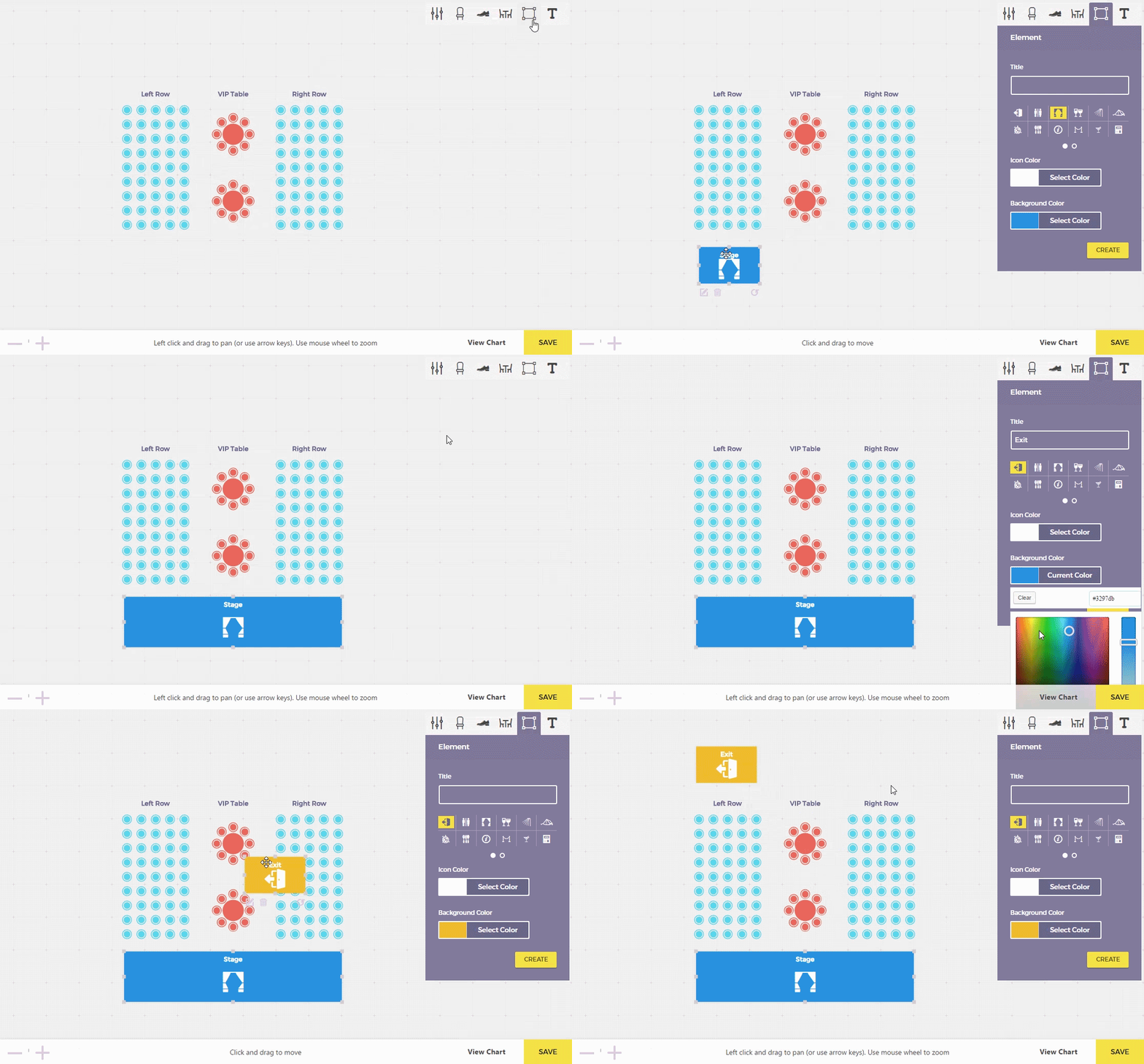
Help attendees find their way.
Mark entrances, exits, restrooms, food and drink stands — right on the chart, where your buyers see them.
Pick a seat. Add to cart. Done.
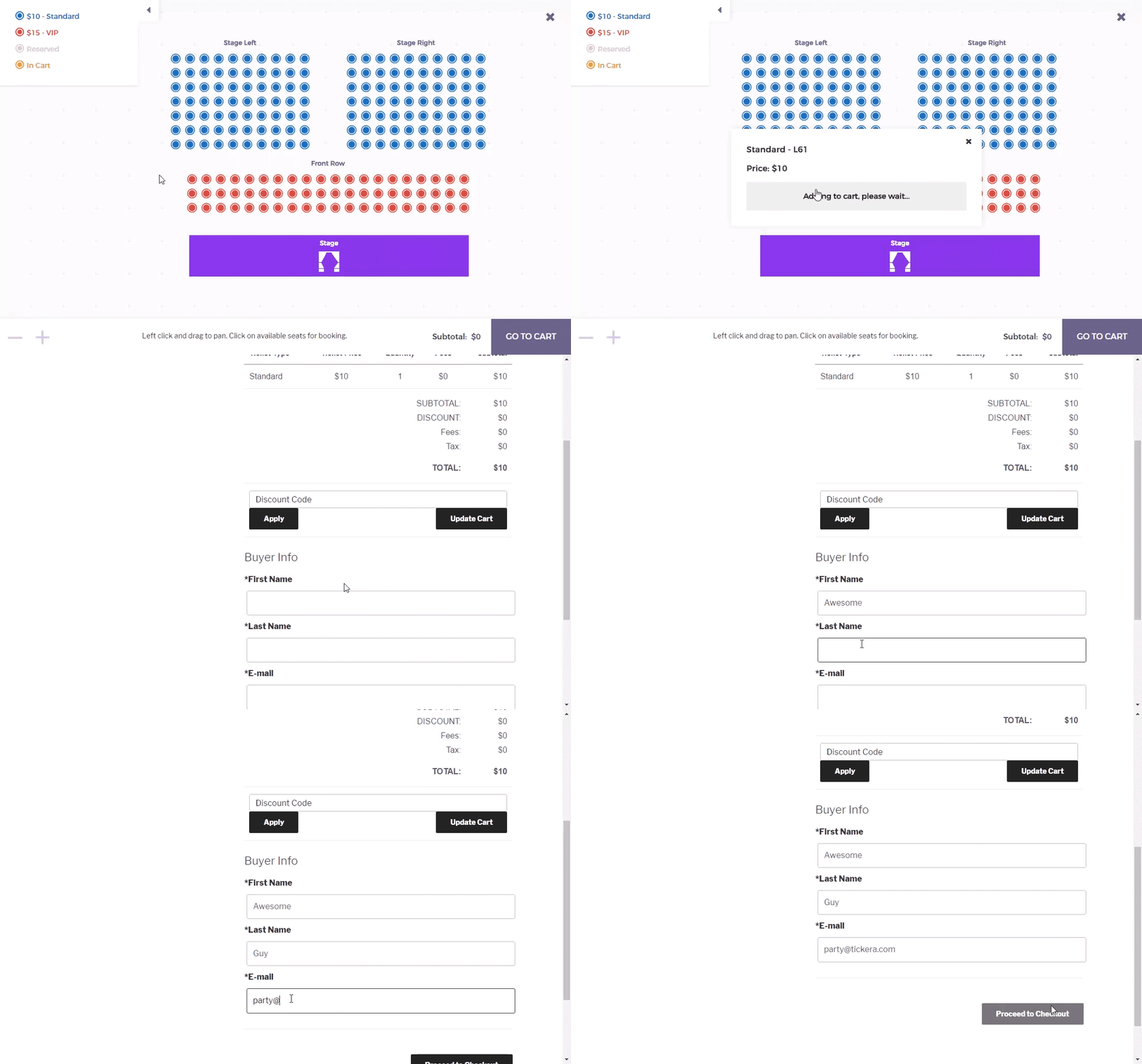
The first time customers see your seating chart, they know how to use it. Pick a seat (or several), add to cart, go to cart, finish the purchase.
Six layouts
built with Seating Charts.
Real example charts — from a small theater to a multi-section festival venue. The same drag-and-drop builder, different floor plans.


Click any layout to see the full screenshot. Every one of these was built using the same drag-and-drop interface inside the WordPress admin.
Things people ask
before they buy.
What is an interactive seating chart?
How do I create an interactive seating chart in WordPress?
Do I need WooCommerce?
How do buyers know which seats are taken?
Can I edit a chart after I publish it?
Can I sell seated tickets and standing tickets in the same event?
How many ticket types per chart?
Where do I place the chart on my site?
What does it cost?
More add-ons
for the same plugin.

Bridge for WooCommerce
Sell and deliver tickets to your buyers using the awesomeness of WooCommerce and Tickera fusion!

Custom Forms
Know more about your customers! Create beautiful forms which will fit into your theme's design. Control order of the elements, number of columns, set required and optional fields,… the easy way!

Checkinera
Meet Checkinera – a new solution for ticket check-in. With Checkinera, you can use iOS, Android and any desktop/laptop computer as fully fledged ticket check-in system.

CSV Export
Take advantage of the data all-arounder – CSV! This add-on is user-friendly exporter which will export Attendee List with minimum of hassle and maximum of usage for external accounting system.
Build the chart.
Keep the gate.
$99 per year for unlimited charts. 0% per-ticket commission, forever. Or grab it free as part of Bundle.