Withholding ticket delivery for specific events with WooCommerce
A WooCommerce-mode recipe for holding back ticket delivery for specific events until a defined moment — useful when you want to e.g. only send tickets in the final week before an event (to limit ticket sharing/forwarding) or only after a separate approval step (members-only, guest-list events). Tickera marks the orders as paid, the buyer’s confirmation says “Your tickets will be sent X days before the event,” and Tickera releases them automatically at that time.
If you are using Tickera together with WooCommerce and Bridge for WooCommerce, ticket delivery is directly tied to WooCommerce order statuses.
Before we dive into the technical side, let’s first answer a more important question:
Why delay ticket delivery?
There are several perfectly valid scenarios where immediate ticket delivery is not ideal.
Some organizers sell early-access tickets months in advance but want to send final tickets only all the arrangements are finalized. Others may need to verify attendee details manually before issuing official entry passes. In certain corporate or invitation-based events, payment may secure a spot, but the actual ticket is generated only after internal approval. And sometimes, it’s simply about logistics: sending finalized tickets closer to the event date to reduce confusion, transfers, or unnecessary support requests.
In all of these cases, you want:
- Immediate payment confirmation
- Clear communication to the buyer
- But no ticket download link yet
At the same time, other events on the same website should continue sending tickets instantly. That’s where WooCommerce order logic becomes useful.
How WooCommerce processes orders (and why that matters)
To understand this solution, it helps to understand how WooCommerce treats orders from start to finish.
Here is the simplified lifecycle of a typical paid order:
- On hold – Order created, payment not completed.
- Processing – Payment received, order requires fulfillment.
- Completed – Order fully fulfilled.
- Cancelled / Refunded / Failed – Self-explanatory states.
Now here’s the important detail:
WooCommerce decides whether an order should go to Processing or directly to Completed based on the product type. If a product is marked as Virtual and Downloadable WooCommerce assumes there is nothing physical to ship and automatically marks the order as Completed after successful payment.
If those checkboxes are not enabled, WooCommerce assumes some kind of manual fulfillment is required and leaves the order in Processing.
That small difference is what allows us to control ticket delivery timing.
How order statuses affect Tickera tickets
When using Tickera with Bridge for WooCommerce tickets are generated after successful payment and ticket emails containing download links are typically sent when the order reaches Completed.
The content of emails can be customized per WooCommerce order status inside Tickera Settings -> Email.
This means we can separate payment confirmation and ticket delivery by controlling which status the order reaches automatically.
Step 1 – configure ticket products differently
For ticket types that should be sent immediately:
Create them as WooCommerce products and enable both Virtual and Downloadable.
After payment, WooCommerce will move these orders from Processing to Completed automatically.

For ticket types that should be delayed:
Create them without checking Virtual and Downloadable.
After payment, these orders will remain in Processing.
No automatic completion means no automatic ticket email with download links.
Step 2 – adjust email content per order status
Navigate to Tickera Settings -> Email. There, you can define different email content depending on WooCommerce order status.
For emails triggered when the order status is Completed, include the placeholder TICKETS_TABLE
This placeholder generates the table with ticket download links.
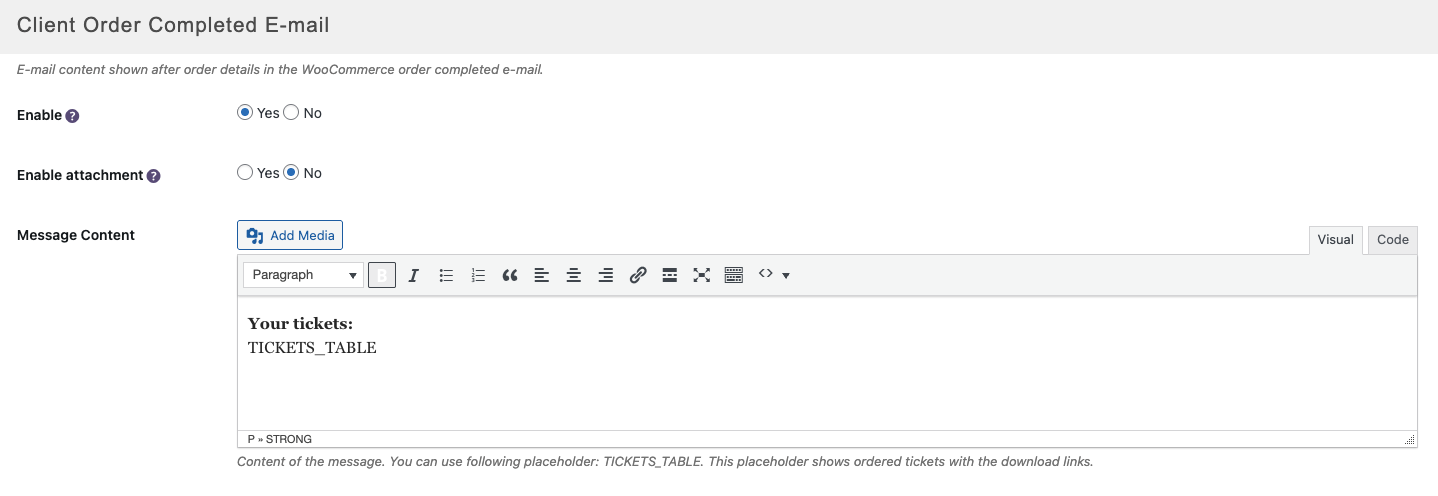
For emails triggered when the order status is Processing, simply do not include TICKETS_TABLE. And since Tickera only appends its content to WooCommerce’s default email content, you actually don’t need to include anything in this message message on Tickera’s side of things.
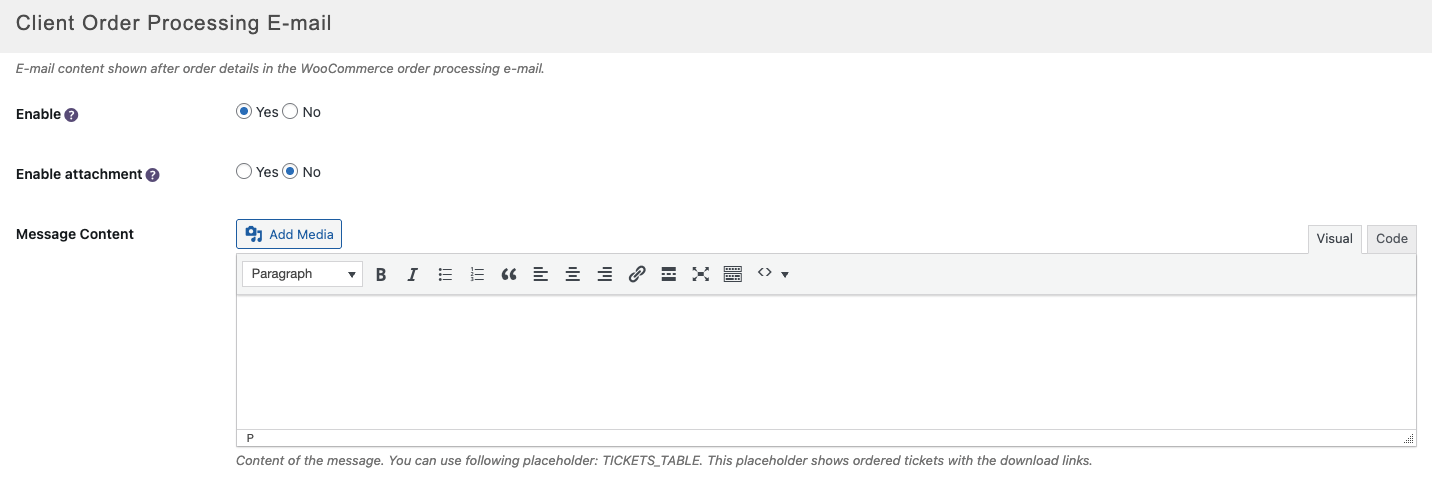
With this setup, Processing email will contain payment confirmation only while Completed email will contain actual tickets.
Important note:
WooCommerce always sets the order to Processing first, even for Virtual + Downloadable products. Only after that does it move to Completed.
This means customers receiving instant tickets will get Processing email (confirmation and Completed email (with tickets) immediately after.
Therefore, you may want to keep the Processing email sent by WooCommerce, short and neutral.
Step 3 – release delayed tickets manually
When you decide it’s time to send withheld tickets, simply change the order status from Processing to Completed inside WooCommerce.
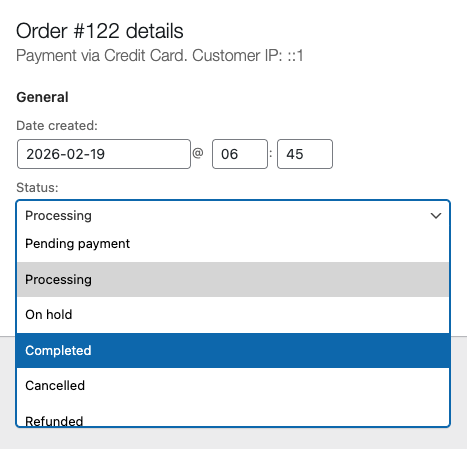
As soon as the order reaches Completed:
- The Completed email is triggered
- TICKETS_TABLE is included
- Ticket download links are sent
No extra configuration is required.
One more thing…
If you want to include QR codes right in the table of purchased tickets that will be sent with the Completed emails, we suggest you check our solution found here.
And to make sure those emails don’t end up in spam limbo, have a look at our post about tackling email deliverability.
Related
Was this article helpful?
Yes — great. No or partially? Tell us what was missing — we read every message and use it to improve these docs.