The E-mail tab in Tickera Settings (Bridge for WooCommerce mode) controls how ticket delivery hooks into WooCommerce’s email system. When a buyer completes checkout, WooCommerce sends the order-confirmation email — and Tickera’s job is to embed the right ticket info (download links, QR codes, attendee details) into that email. This tab is where you decide what gets included, in which WooCommerce email it lands, and what the wording looks like.
The E-mail tab in Tickera Settings controls how email notifications related to tickets are handled. This is where Tickera manages the content that gets sent to ticket buyers and attendees.
When Tickera is running with Bridge for WooCommerce, both systems participate in sending emails:
- WooCommerce sends buyer emails, because WooCommerce manages orders and checkout.
- Tickera sends attendee emails, because Tickera manages attendees and ticket records.
Tickera automatically adapts based on the presence of WooCommerce — no extra setup is required.
Buyer emails
With WooCommerce active, buyer emails are generated and sent by WooCommerce. Tickera does not replace WooCommerce’s email template and does not control formatting, headers, or layout.
Tickera simply appends additional content to the end of WooCommerce’s email.
You can add any custom text in Tickera’s Email Settings, and Tickera will append that text to the buyer email WooCommerce sends. Within that appended content, Tickera supports TICKETS_TABLE placeholder. This placeholder generates a table listing all tickets purchased in the WooCommerce order.
You can wrap the placeholder with any text you like, for example:
To download your tickets, use the table below:
TICKETS_TABLE
or
Your tickets are ready:
TICKETS_TABLE
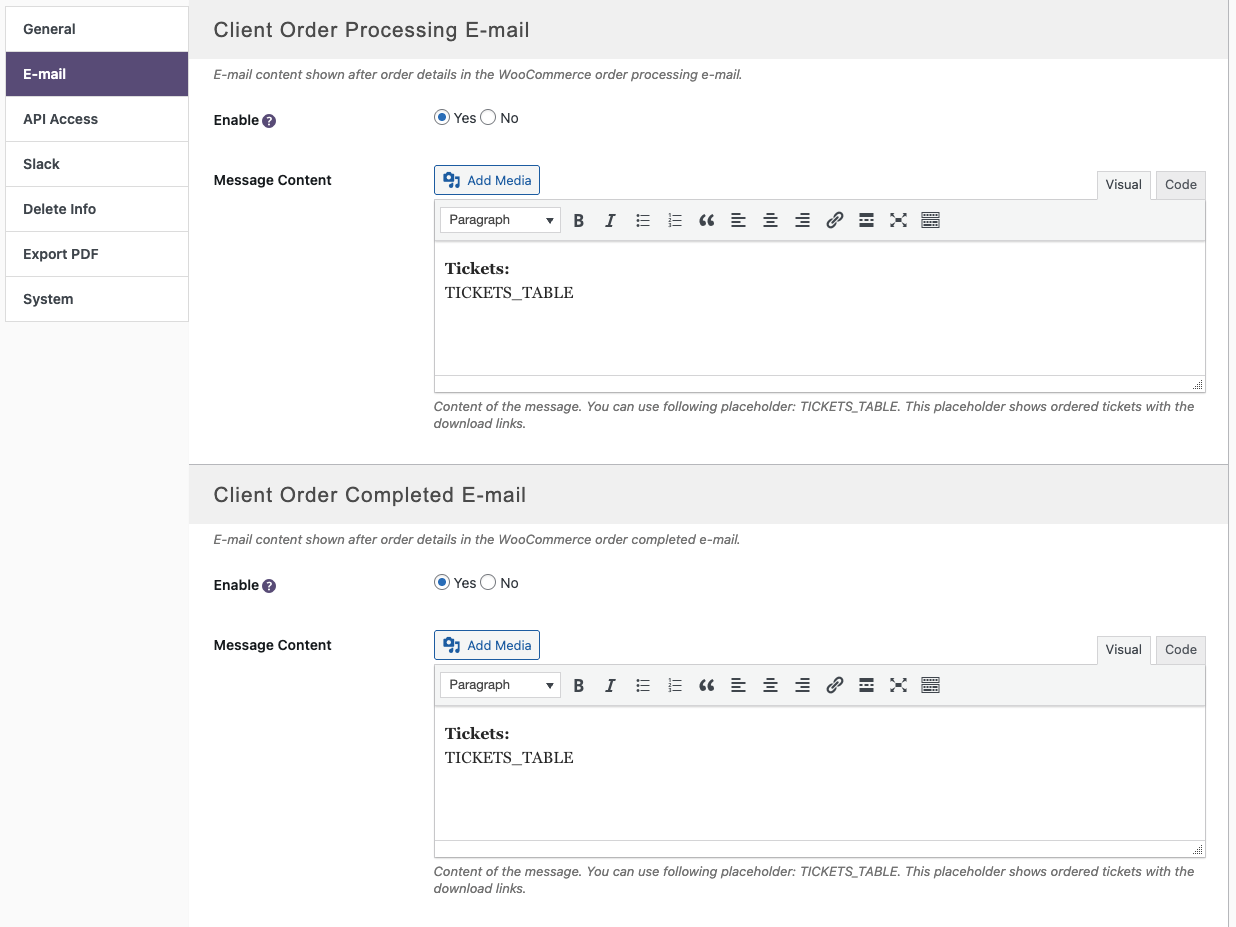
Everything else in the buyer email — payment confirmation, order summary, branding — comes from WooCommerce.
For more advanced customisation of the tickets table content, see the Tickera guide here.
And if you’d like to add event title and date into the WooCommerce table of purchased items (which appears in the same email), there’s a solution here.
Attendee emails
Attendee emails are identical to standalone Tickera:
- Tickera generates and sends the emails directly to attendees.
- All Tickera placeholders are available.
- Each attendee receives their own ticket and any additional information you include.
WooCommerce does not influence attendee emails.
What remains the same
- Email configuration for Tickera is still located under Tickera -> Settings -> Email.
- Tickera continues to generate tickets and send attendee emails.
- Your email content and placeholders for attendee emails remain unchanged.
What changes with Bridge for WooCommerce
- Buyer emails are controlled and sent by WooCommerce.
- Tickera only appends its email content to WooCommerce’s email.
- The only available Tickera placeholder for buyer emails is TICKETS_TABLE
Tickera does not alter WooCommerce’s email design or formatting.
Troubleshooting email delivery
If buyer emails are failing to deliver, always start with WooCommerce:
- Go to WooCommerce -> Orders and verify the order status. Buyer emails are triggered by certain order statuses (e.g., Completed).
- Check WooCommerce email settings:
- Go to WooCommerce -> Settings -> Emails
- Ensure that emails for the relevant order status are enabled.
- Confirm that the “Recipient(s)” field contains a valid email address (for admin-emails).
- Ensure your server is capable of sending transactional emails (e.g., use an SMTP plugin).
For further troubleshooting steps refer to WooCommerce’s official email FAQ here.
Remember: Tickera cannot append ticket data if WooCommerce never sends the base email. Ensure that WooCommerce is properly triggering emails.
Related questions
- General Tickera settings for WooCommerce
- Configuring WooCommerce settings
- Event email reminders
- Can I include QR and barcode on the ticket?
Was this article helpful?
Yes — great. No or partially? Tell us what was missing — we read every message and use it to improve these docs.