General
The General tab is where Tickera’s core preferences live when running in Bridge for WooCommerce mode — branding, ticket layout defaults, ticket-on-cart behaviour, and a few WooCommerce-specific integration toggles like “Hide Tickets” (keep ticket products off the WooCommerce shop page) and “Redirect product single post to event”. Most of these are set once at install and rarely touched again, but understanding what each does makes the difference between a ticket store that feels custom-built and one that feels like two plugins bolted together.
When Bridge for WooCommerce is active, Tickera hands checkout, orders, and payment logic to WooCommerce. the Settings screen keeps all ticketing-centric controls in Tickera, but removes anything related to Tickera’s own checkout and gateways. You’ll notice different tabs and a trimmed set of options in General — plus a new WooCommerce-specific area in the General Settings.
Available tabs when Bridge for WooCommerce is active
The left sidebar in Tickera -> Settings includes:
- General
- API Access
- Delete Info
- Export PDF
- System
The Payment Gateways tab is not present when Bridge for WooCommerce is active, because WooCommerce handles all payment methods, currencies, and taxes.
General tab
The General tab is divided into four blocks:
- Store Settings
- Miscellaneous
- WooCommerce (this block appears only when Bridge is enabled)
- Events Settings
Many of the options in this section behave exactly the same as when Tickera is used as a standalone ticketing system.
For detailed descriptions and examples of these settings (such as attendee fields, session behavior, multipage ticket templates, or event display options), refer to the full Tickera Settings documentation here.
Store Settings
These options determine which attendee information Tickera collects and how ticket data behaves:
- Show attendee fields
- Show attendee first and last name fields
- Require first name / require last name
- Show attendee email
- E-mail verification
- Allow ticket check-out
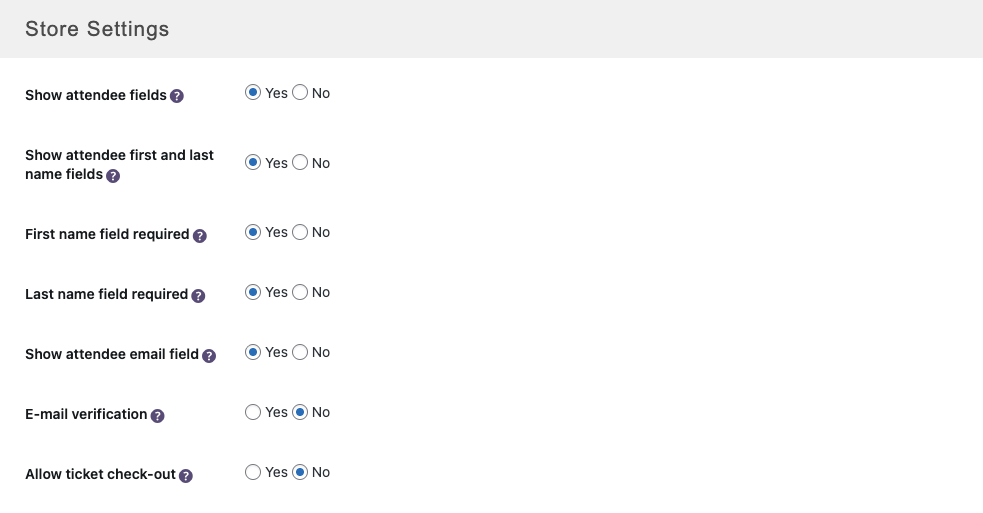
Even though WooCommerce manages checkout, these switches govern how Tickera collects attendee information. Attendee information is not part of WooCommerce’s default checkout but can be collected by enabling them in these settings. Also, attendee email field can be used if you want to deliver tickets via email directly to attendees, not just to buyers.
Miscellaneous
General Tickera behavior that remains the same with or without Bridge:
- Show events on the front page
- Multipage ticket template
- Create and force new session path
- Age confirmation checkbox
- EAN-13 code converter
- Google Maps API key
- Hide tickets ineligible for check-in
- Disable Ticket Download Hash
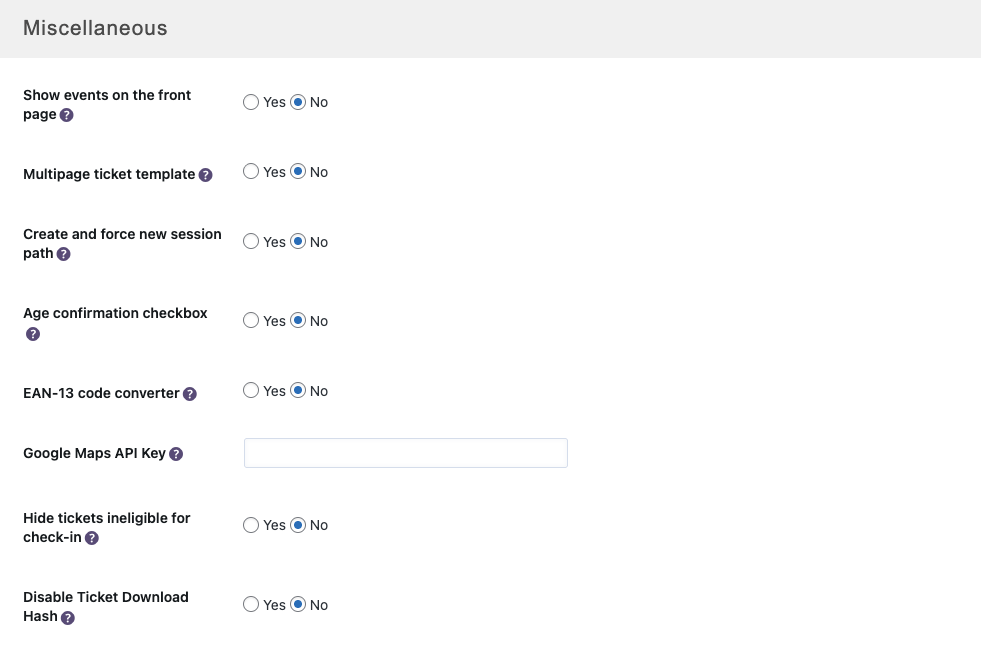
These options do not interact with WooCommerce. They control how Tickera behaves on the site and in ticket generation.
WooCommerce
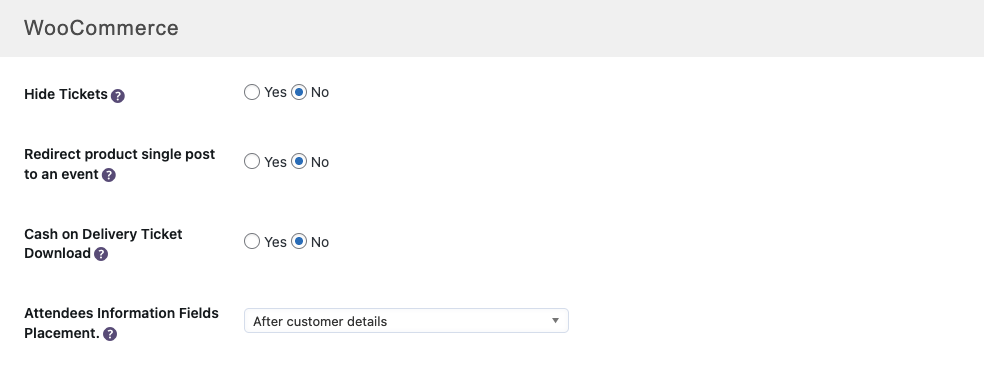
This is the section unique to Bridge for WooCommerce. It controls how Tickera integrates with WooCommerce’s product pages and checkout.
- Hide Tickets
Hides products declared as tickets from WooCommerce’s shop page. - Redirect product single post to an event
When a WooCommerce product represents a ticket, redirect the product page to the corresponding Tickera event page (handy if you want the event page to be the canonical “learn more + buy” destination). - Cash on Delivery ticket download
Enables or disables ticket download on orders using the COD payment method, depending on your workflow. - Attendees Information Fields Placement
Controls where attendee data fields appear during WooCommerce checkout. Options include:- Before customer details
- After customer details
- Before order notes
- After order notes
- Before order review
- After order review
- Within Billing Information
- Within Shipping Information
Choose the position based on your checkout layout and theme formatting.
Events Settings
Event-specific display options remain unchanged:
- Event slug
- Event category slug
- Display event date & time
- Display event location
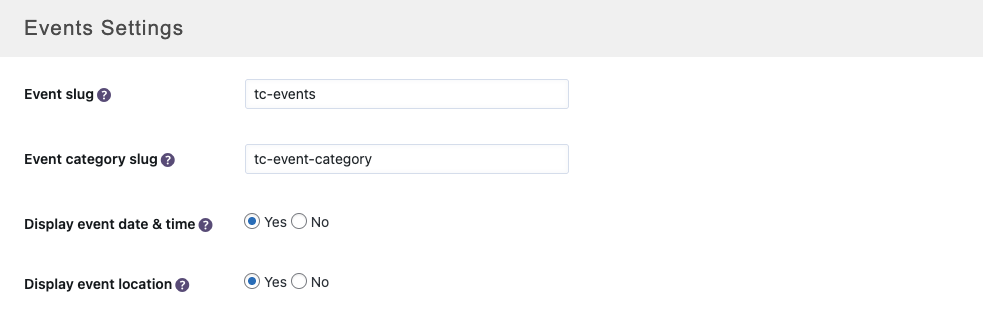
These settings affect how Tickera event pages appear on your site and have no interaction with WooCommerce.
Related questions
- E-mail options (WooCommerce)
- API Access (check-in apps with WooCommerce)
- Configuring WooCommerce settings
- Force customers to use the seating chart
Was this article helpful?
Yes — great. No or partially? Tell us what was missing — we read every message and use it to improve these docs.