Attendees and Tickets
The Attendees and Tickets screen is Tickera’s operational dashboard — every ticket that’s been sold, every attendee who has a name on a ticket, status, check-in history, links to associated orders. It works identically whether Tickera is running standalone or paired with Bridge for WooCommerce; the only difference in Bridge mode is that the corresponding “Order” link points to a WooCommerce order rather than a Tickera order.
The Attendees & Tickets section gives you a complete overview of everyone who has purchased tickets to your events. This screen is where you can monitor attendees, see which tickets were generated, and review check-in activity — all from a single table.
When using Tickera together with Bridge for WooCommerce, the Attendees & Tickets screen works the same as in standalone Tickera. The only difference is that orders and their statuses are pulled from WooCommerce instead of Tickera.
You still access it via Tickera -> Attendees & Tickets in the WordPress admin menu.
What you can do here
The table shows every attendee associated with every generated ticket. You can search or filter by event, date, or order status to quickly locate the person or ticket you need, whether you’re preparing your guest list beforehand or actively managing the entrance during the event.
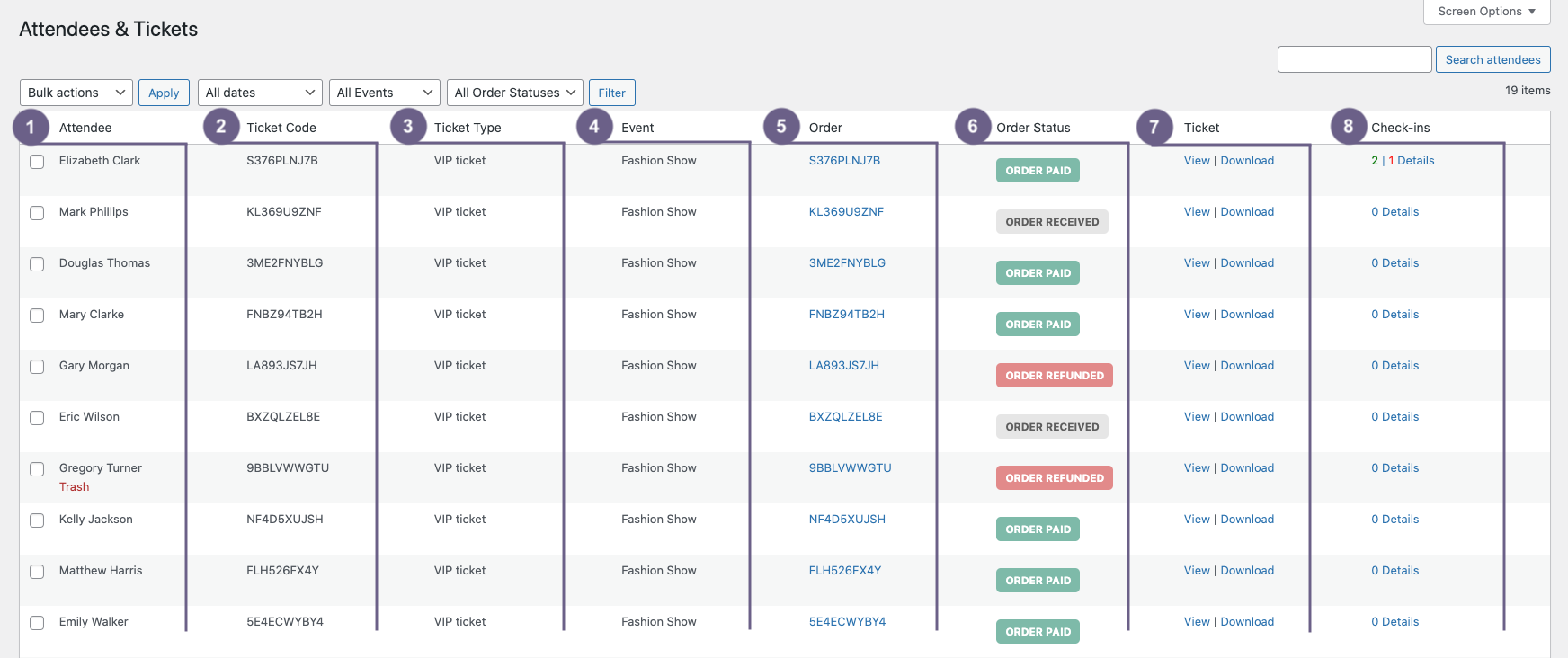
Each row shows key information:
- Attendee – Displays the attendee’s first and last name.
- Ticket Code – The unique alphanumeric identifier assigned to the ticket.
- Ticket Type – Shows which ticket type was purchased (e.g., Standard, VIP, Early Bird).
- Event – Displays the event the ticket belongs to.
- Ticket – Lets you preview or download the PDF ticket.
You can track check-in activity from the Check-ins column. Clicking it opens a detailed timeline of all check-ins for that specific ticket, including timestamps and results. From here, you can manually check in the attendee or delete a check-in record if needed.
What changes with Bridge for WooCommerce
Because WooCommerce handles orders and payments, the order-related columns in this table reflect WooCommerce data:
- Order – Displays the WooCommerce order ID. Clicking the order number takes you directly to the WooCommerce order details page in the backend.
- Order Status – Shows WooCommerce order statuses (e.g., Processing, Completed, Cancelled, Refunded), instead of Tickera’s native statuses.
Everything else about Attendees & Tickets remains managed by Tickera — including ticket generation, attendee data, and check-in tracking.
Summary
The Attendees & Tickets screen provides a centralized way to monitor attendees, manage tickets, and track check-ins. When using Bridge for WooCommerce, the only difference is that the Order and Order Status columns reflect WooCommerce order data and link directly to the WooCommerce order detail screen. Tickera continues to handle the attendees, tickets, and check-in logic.
Related questions
- Events (Bridge for WooCommerce)
- Ticket templates
- CSV Export add-on for bulk attendee exports
- Does Tickera use QR code for checking in attendees?
Was this article helpful?
Yes — great. No or partially? Tell us what was missing — we read every message and use it to improve these docs.