– Elements
A reference page for the Seating Charts editor, covering one of the building blocks you use to construct your venue layout. Combined with the other building blocks (seating groups, standing areas, tables, decorative elements, text, background images), this is what lets you draw any venue as a fully interactive, click-to-buy seating chart.
Once you’ve added all the seats, tables, and standing areas, it’s time to make your venue feel alive.
The seating chart elements let you place small visual icons—stages, exits, bars, restrooms, info points, or anything else—to help visitors instantly understand your layout.
They don’t hold tickets, but they make the chart realistic and intuitive.
Adding an element
Click the elements icon in the toolbox.
This opens the Elements pane on the right side of the editor.
Here you’ll find a list of available icons you can add to your chart. Each represents a typical venue feature (stage, entrance, bar, WC, etc.).
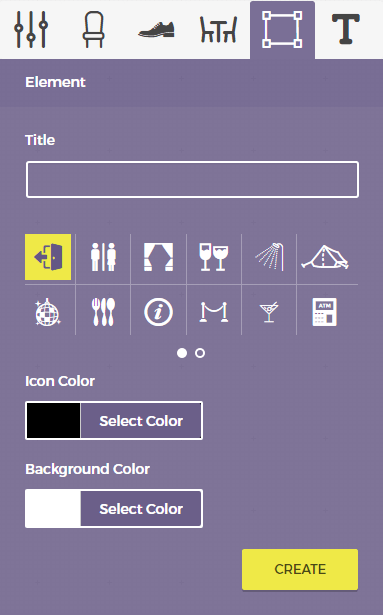
Choose the one you want and click Create—the icon will appear on your canvas right away.
You can add as many as you like.
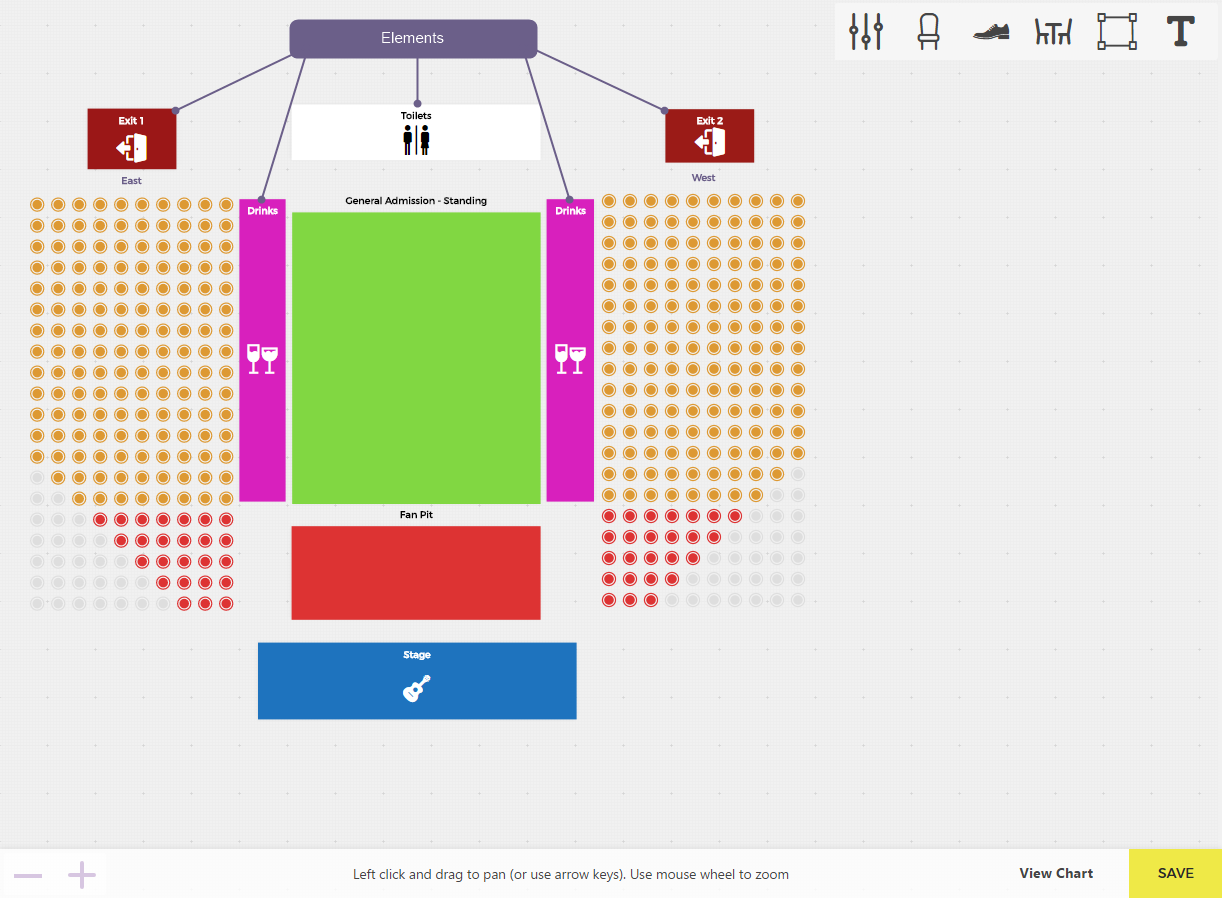
Titles and appearance
Every element can have an optional title, which you can set in the Elements pane (for example, Main Stage, East Entrance, Bar 2, etc.).
You can also customize:
- Title (optional): all elements can have a title (for example, “Main stage” or “East entrance”).
- Icon color & background: you can set both the icon color and the background color for each element to fit your chart’s visual scheme or improve contrast.
This makes it easy to coordinate your chart visually, match venue branding, or improve readability on different backgrounds.
Sizing and layout
- You can resize the element’s rectangle on the canvas (drag its handles). This changes the element’s footprint/box for layout clarity, but doesn’t scale the icon inside it.
- Use rotation if you need the element to follow an angled aisle or stage edge.
Pro tip
Elements don’t affect ticketing but make your chart far more intuitive. Mark entrances, exits, bars, restrooms, info desks, or merch areas to help attendees understand your venue before they even arrive.
Creative use cases
Elements can represent far more than stages or doors. Organizers frequently use them for sponsors, food trucks, first aid, or VIP areas—anything that helps people orient themselves.
And here’s a clever visual trick:
If you set the icon color and background color to the same value, the icon effectively disappears, leaving only a resizable rectangle.
This can be used to draw walls, boundaries, tracks or catwalks, or any other rectangular structure you want to represent visually.
By overlapping and rotating multiple such “invisible” elements, you can even create custom shapes (like angled walls or platforms). Then, use text elements on top to label them—text elements are both resizable and rotatable (unlike element labels), which makes them perfect for naming these visual structures.
For a real-world example of this technique in action, check out our blog post Running Tickera at a music festival. It includes a screenshot of a creative layout built entirely with elements, showcasing just how flexible the Seating Charts add-on can be.
Related
Was this article helpful?
Yes — great. No or partially? Tell us what was missing — we read every message and use it to improve these docs.