Capture what you need
at checkout, on the ticket, in the app.
Drag-and-drop form builder for Tickera. Add text, dropdowns, checkboxes, radios, textareas to your checkout — collect t-shirt sizes, meal choices, special-access needs, accommodation info. Every answer lands in the WP admin, on the ticket itself, in the Checkinera app, and in your CSV/PDF exports.
- Drag & drop builder — no coding, no shortcodes
- Buyer-level fields and attendee-level fields — separate forms
- Show fields on the ticket template — print attendee data on PDF
- Field data flows into Checkinera app, PDF and CSV exports
Six ways to ask
a buyer something.
Every field type WordPress site owners actually use. Build it once, attach it to your event, the form lives on the checkout page.
Text input
Single-line or multi-line. Required or optional. Default value, placeholder, validation rules — standard WordPress form behavior.
Checkboxes
For consent, multi-select, dietary needs, accessibility requests. Each checkbox option saves separately on the order.
Radio buttons
Single-choice answers — meal type, t-shirt size, age range. Cleaner than a dropdown for short option lists.
Dropdowns
Country, time slot, ticket category — long option lists collapsed into one select element.
Textareas
Free-form answers — dietary notes, accessibility details, “anything else we should know” catch-all.
Column layout
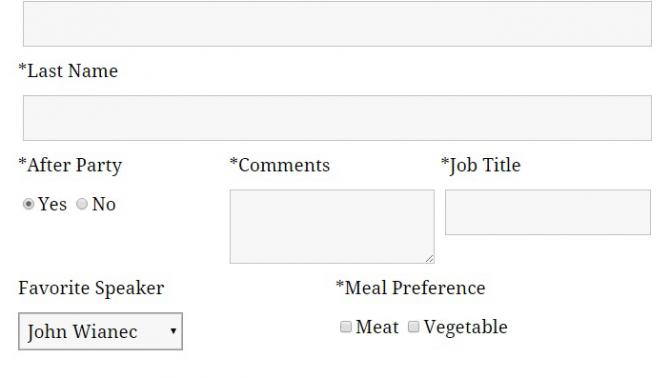
Stack fields full-width, side-by-side, or in three columns. Control the order in the builder, save, the form respects it.
The form builder
in motion.
Drag, drop, label, done.
Open the Custom Forms admin screen, drag the field type you want from the sidebar onto the canvas. Label it, mark required or optional, set placeholder text, choose where it displays (admin only / Checkinera app / both / on the ticket).
- Multiple field types — text, textarea, checkboxes, radio buttons, dropdowns
- Per-field placement control — admin, app, ticket
- Reorder by drag — no save-and-refresh dance
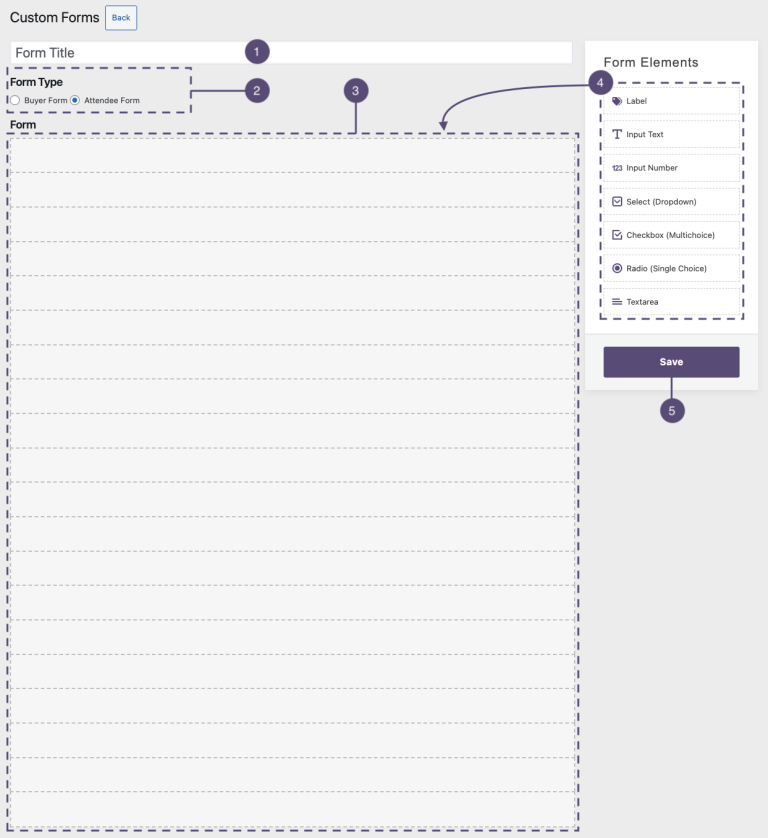
Two forms in one tool.
The buyer fills out the buyer form once (their name, email, billing details). Each ticket holder fills out the attendee form separately (their name, dietary, accessibility). Buying 4 tickets? You get 4 attendee forms in a row, one buyer form at the top.
- Buyer form — one per order, billing-style
- Attendee form — one per ticket purchased
- Both saved on the order, both viewable in admin
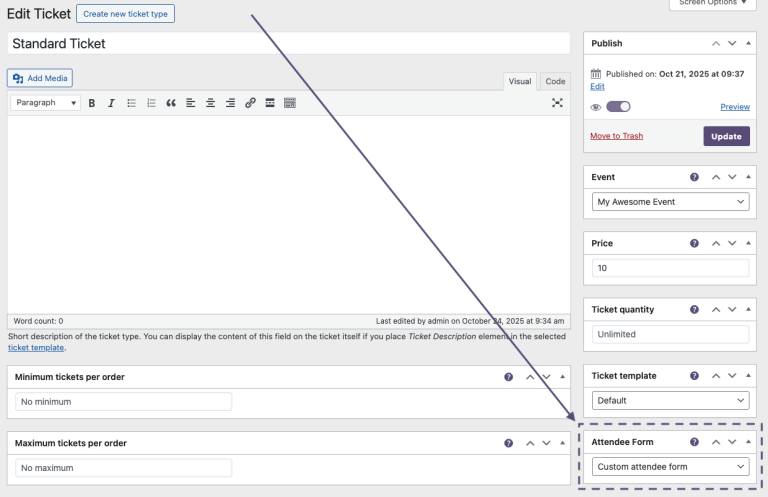
Themed to match your site.
The form inherits typography, colors, and spacing from your WordPress theme — no inline styles to fight, no “form plugin look”. If your theme uses Hanken Grotesk and a 12px border-radius, so does the form.
- CSS-clean, no inline styles imposing a look
- Responsive grid — stacks on mobile, columns on desktop
- Works with Bridge for WooCommerce — renders on the WC checkout
Eight things every
organizer asks at checkout.
Things people ask
before they buy.
Where does the collected data go?
Can I print the answer on the ticket?
What’s the difference between “buyer” and “attendee” forms?
Does it work with Bridge for WooCommerce?
Can I make a field required?
What does it cost?
More add-ons
for the same plugin.

Bridge for WooCommerce
Sell and deliver tickets to your buyers using the awesomeness of WooCommerce and Tickera fusion!

Seating Charts
Let your attendees choose the best seats for your show! Create stunning floor plans of your venue with simple drag and drop interface.

Checkinera
Meet Checkinera – a new solution for ticket check-in. With Checkinera, you can use iOS, Android and any desktop/laptop computer as fully fledged ticket check-in system.

CSV Export
Take advantage of the data all-arounder – CSV! This add-on is user-friendly exporter which will export Attendee List with minimum of hassle and maximum of usage for external accounting system.
Ask once.
Use it everywhere.
$69 a year. Unlimited forms, unlimited fields, unlimited orders. The data flows to the order, the ticket, the check-in app and your CSV exports automatically. Zero per-ticket fee, ever.