Ticket Templates
Ticket templates are how you control what the printed/PDF ticket actually looks like — your logo at the top, the attendee name, the event date and venue, the QR code, custom fields, sponsor logos at the bottom. The visual template builder is shared whether you’re running Tickera standalone or with Bridge for WooCommerce; this page covers the Bridge-mode specifics.
Ticket templates control how tickets look once they’re generated: layout, branding, QR/barcode placement, attendee details, and any additional event information. When using Tickera together with Bridge for WooCommerce, the template editor behaves exactly the same as in standalone Tickera. Tickera still handles ticket design, ticket PDF generation, and sending tickets to customers. WooCommerce only manages the sales and checkout process.
If you already know how to create templates in Tickera, nothing changes here.
For detailed instructions on designing templates, see the standalone Ticket Templates documentation.
How ticket templates work with WooCommerce
When Bridge for WooCommerce is active, WooCommerce products can be used as ticket types.
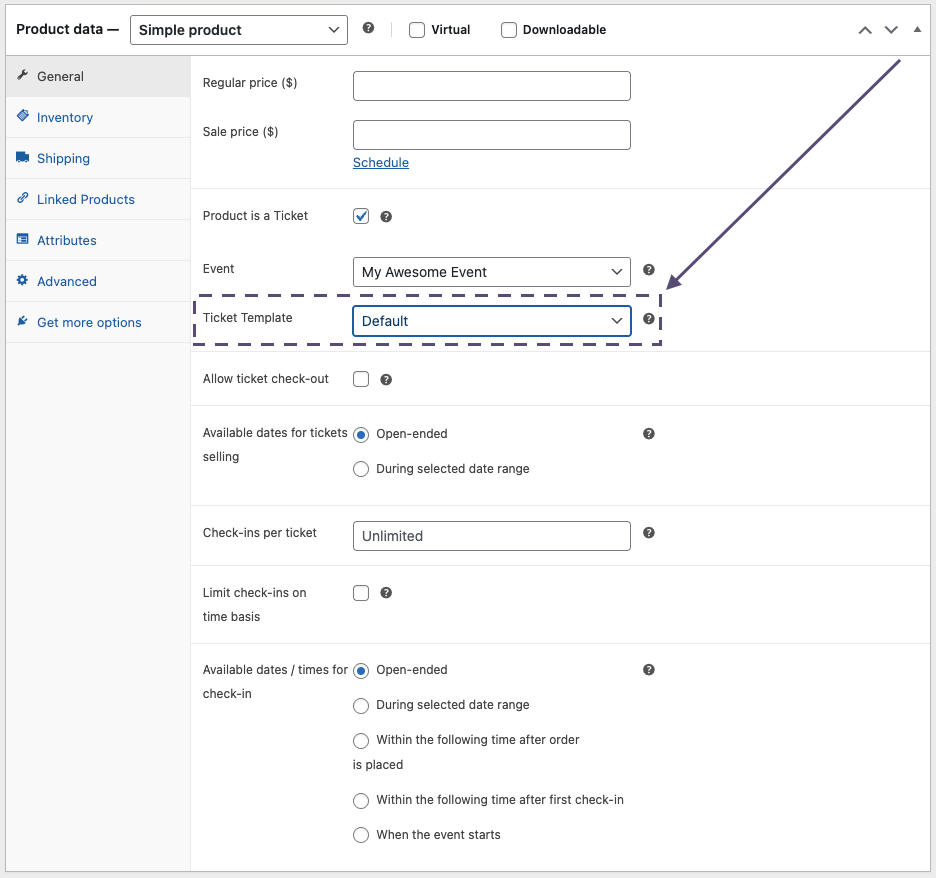
To assign a ticket template to a product:
- Edit the WooCommerce product.
- Check the Product is a ticket checkbox to declare it as a ticket type.
- A set of Tickera-related options will appear, including the Ticket Template dropdown.
- Choose the template you want to use for tickets generated from that product.
That’s it — whenever WooCommerce completes an order, Tickera generates the tickets using the selected template.
What remains the same
All features of the Ticket Template editor work exactly as they do in standalone Tickera:
- Drag-and-drop designer
- Dynamic fields for event and attendee information
- Logo and branding elements
- Multiple templates for different ticket types
No changes to template creation or customization are required when using WooCommerce.
Additional elements available with WooCommerce
Using Bridge for WooCommerce introduces additional template elements that allow WooCommerce customer information to appear on the ticket:
- WooCommerce Billing Info
- WooCommerce Shipping Info
Additionally, some standard Tickera elements adapt to use WooCommerce data:
- Ticket Type – corresponds with WooCommerce product title
- Ticket Buyer Name – corresponds with Buyer first and last name from WooCommerce customer profile
These optional elements make it possible to place buyer info directly on the ticket, which is especially useful when the person purchasing the tickets is not the attendee.
Summary
- You still design templates in Tickera.
- Tickets use the template assigned to the WooCommerce product via the Product is a ticket option.
- Tickera generates and sends tickets after WooCommerce completes the order.
- Additional WooCommerce-specific elements are available in the template editor.
For full template customization instructions, refer to the standalone Ticket Templates documentation.
Related questions
- Ticket templates (general)
- Can I include QR and barcode on the ticket?
- Creating a ticket type as a WooCommerce product
Was this article helpful?
Yes — great. No or partially? Tell us what was missing — we read every message and use it to improve these docs.