Terms And Conditions
The Terms and Conditions add-on forces ticket buyers to tick an “I agree to your terms” checkbox before they can complete checkout — and stores a record of who agreed and when. Critical for legal protection on events with non-refundable tickets, age-restricted entry, code-of-conduct enforcement, photo/video release, allergen warnings, or any scenario where you need provable consent at point of sale.
Once you install and activate ‘Terms And Conditions’ add-on, you’ll notice a new ‘Terms And Conditions’ menu in Tickera Settings area.
Here you’ve got a few fields to fill up with everything being pretty self explanatory:
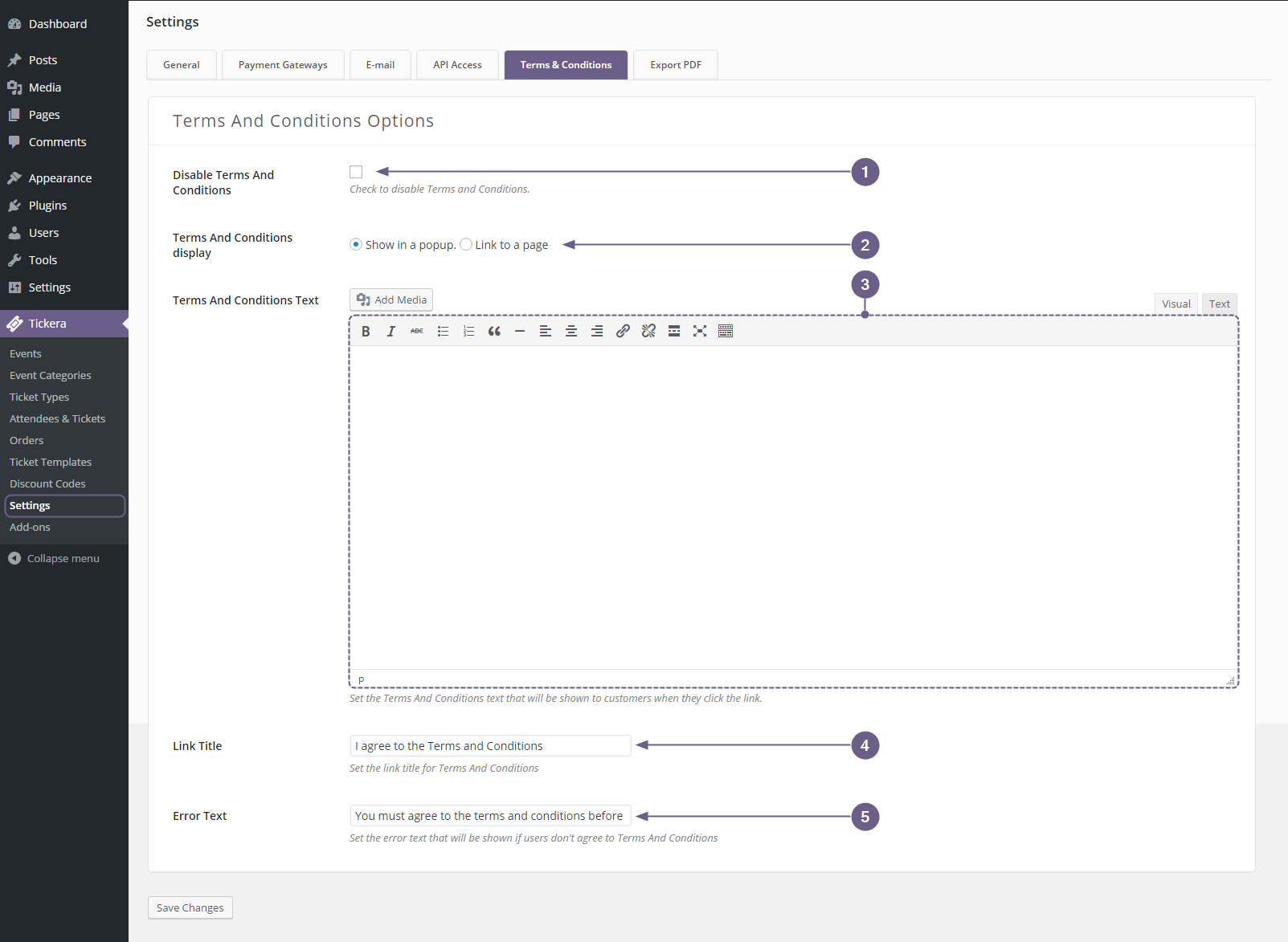
- Disable Terms And Conditions – Check to disable Terms and Conditions.
- Terms and Conditions Display – Select the way you would like for terms and conditions to be displayed (in a popup or on the separate page)
- Terms And Conditions Text – Enter Terms And Conditions text that will be shown to the customers when they click the link.
- Link Title – Enter the link title for Terms And Conditions
- Error Text – Enter the error text that will be shown if users don’t agree to the Terms And Conditions
Once done, hit Save Changes button at the bottom and you’re done.
Related questions
Was this article helpful?
Yes — great. No or partially? Tell us what was missing — we read every message and use it to improve these docs.