

Firebase setup and configuring
Other Categories:
Tickera Account FAQ, Pre-sales FAQ, Tickera, Bridge for WooCommerce, Add-ons, Check-in Apps, FAQ & Troubleshooting, SolutionsFirebase setup and configuring
Using Google’s Firebase with the Seating Charts add-on isn’t mandatory, but it’s an extremely useful enhancement — especially for real-time seat management.
With Firebase enabled, the system can display in real time which seats are in someone’s cart, reserved, or sold. This prevents two customers from selecting the same seat simultaneously and ensures your event’s seating data stays perfectly synchronized.
In other words, Firebase integration makes your seating charts dynamic. The moment a customer adds a seat to their cart, that seat appears as in someone else’s cart and shown in a different color to all other visitors — effectively “holding” it until the customer either completes the purchase or their cart session expires. Without Firebase, this process happens only after checkout, which means double booking could occur if two people attempt to buy the same seat at nearly the same time.
Why this integration matters
- Prevents double bookings – seats will become unavailable as soon as the customer adds them to the cart.
- Real-time updates – changes in seat availability (reserved, sold, in-cart) are instantly reflected on every visitor’s screen.
- Enhanced reliability – no need to constantly refresh the page to see the latest seat status.
- Better user experience – customers see exactly what’s available at any moment, reducing checkout frustration.
So while you can use Seating Charts without Firebase, enabling this integration provides a smoother, safer, and more professional ticketing experience.
Setting it up
To use Firebase with Seating Charts, you’ll need a free Firebase account. If you don’t already have one, you can create it using your Google account at https://console.firebase.google.com/
Once your account is ready, follow the step-by-step setup instructions in the tutorial video below. It walks you through everything — from creating your Firebase project to configuring authentication, database rules, and connecting it to your Tickera website.
At one point in the video, you’ll be prompted to copy a short snippet into the Rules section of your Firebase Realtime Database. For convenience, here’s that snippet again:
{
   "rules": {

         "reserved": {
           "$chart_id": {
                   ".indexOn": "timestamp"
           }
       },
       "in-cart": {
           "$chart_id": {
               "$seat": {
                   ".indexOn": "timestamp"
               }
           }
       },
       ".read": true,
       ".write":false,
   }
}
Once this is in place and you enter your Firebase keys in Settings -> Seating Charts -> Firebase Settings, your setup is complete.
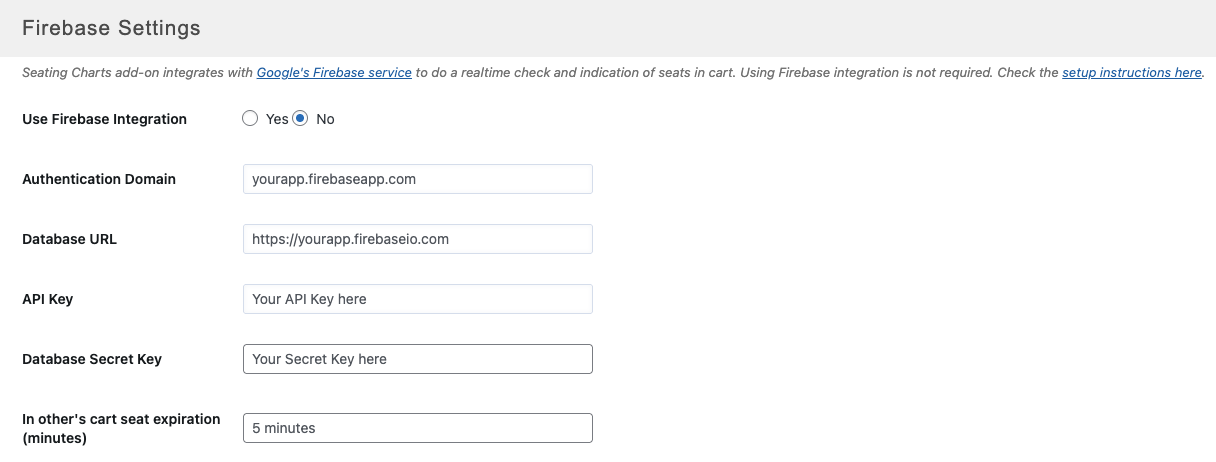
Testing your Firebase setup
To confirm that your Firebase integration is working correctly, follow this quick test:
- Open the same seating chart on two different devices (for example, your computer and your phone).
- On the first device, select a seat and add it to the cart.
- Instantly, on the second device, that same seat should change color to the In other’s cart color you defined in Settings -> Seating Charts.
If the seat updates in real time, your Firebase connection is configured correctly.
If it doesn’t, recheck your Firebase credentials and database rules — even a small typo can break the connection.
About Firebase security warnings
When setting up Firebase, you might see a message in your Firebase console like:
“We’ve detected the following issue(s) with your security rules: any user can read your entire database.”
This can look alarming, but in this context, it’s not a problem.
Here’s why:
Tickera only uses Firebase for lightweight, public real-time updates — specifically to mark seats as “in cart,” “reserved,” or “available.” While the data is technically readable to anyone with your Firebase API keys, that information is just a collection of random JSON entries that mean nothing without Tickera’s internal logic to interpret them.
Even in theory, if someone managed to access your Firebase data, all they would see is a bunch of coded seat states — not ticket details, attendee data, or anything personally identifiable.
And realistically, every visitor to your site is already a “reader” of your seating chart when they view seat availability through the front end. So it’s much easier (and more meaningful) for someone to just visit your event page than to try to “read” Firebase directly.
In short — if you see that warning, you can safely ignore it. It’s expected behavior for this kind of real-time visual integration.