Seating Charts
The Seating Charts add-on is the most-requested Tickera extension — it turns flat ticket sales into a visual, interactive seat-picking experience. Buyers see a layout of your venue, click the seat(s) they want, and check out with the seat number printed on their ticket. Theatres, cinemas, concert halls, banquet venues, stadiums, conference rooms — anywhere with fixed seating, Seating Charts handles it.
The Seating Charts add-on is one of the most powerful and most popular extensions for Tickera. It lets you create fully interactive seating layouts where customers can choose their exact seats when purchasing tickets. Whether you are selling tickets for a theater, concert, stadium, or gala dinner, Seating Charts turns your event page into an interactive booking experience.
Overview
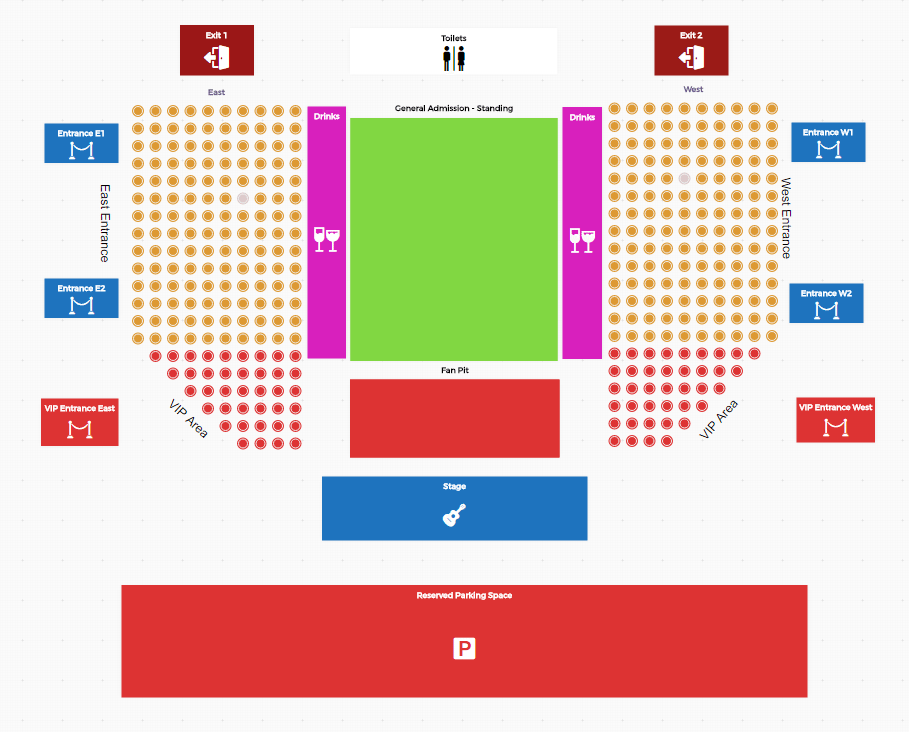
With the Seating Charts add-on, you can build and manage custom venue maps directly inside WordPress using an intuitive drag-and-drop interface. Each seat or group of seats can be assigned to a specific ticket type, allowing for flexible pricing, zones, and seat categories.
Once published, your visitors will see the seating map on your event’s ticket-purchase page, where they can pick their preferred seats before checkout. All selected seats are reserved automatically during the purchase process, ensuring no double-booking or overselling.
Installation
The Seating Charts add-on is installed just like any other Tickera add-on.
If you haven’t installed an add-on before, please see the detailed guide: Installing and managing Tickera plugin and add-ons
After activation, a new Seating Charts menu item will appear in your WordPress admin, where you can start creating your first layout.
Why this add-on matters
Seat selection adds professionalism and control to your event ticketing workflow. It’s a must-have for:
- Venues with fixed seating such as theaters, stadiums, or auditoriums.
- Tiered pricing setups, where seat position defines ticket value.
- Events with VIP zones, reserved tables, or limited seating capacity.
- Organizers who want a visual representation of venue capacity and sales progress.
The add-on helps organizers manage seating capacity efficiently, avoid overselling, and provide customers with exactly what they paid for.
What’s next
The following documentation pages explain each part of the Seating Charts add-on in detail:
- Settings – Overview of global options that control seat behavior and layout defaults.
- Firebase setup and configuring – Explains how to connect Firebase to enable real-time seat reservation.
- Ticket Types – Options available in ticket types when running Seating Charts.
- Handling the number of available tickets – Understanding how seating charts affect ticket quantity and availability.
- Creating a seating chart – Step-by-step guide for building and publishing your first chart.
- Front end – How customers experience seat selection and how reservations are handled.
Already selling tickets without assigned seats?
Don’t worry — you can still switch to assigned seating midway through your sales. Learn how in our blog post here.
Related questions
- Creating a seating chart
- Firebase setup and configuring (real-time seat reservation)
- Force customers to use the seating chart
- I want to sell tickets with seat reservations
Was this article helpful?
Yes — great. No or partially? Tell us what was missing — we read every message and use it to improve these docs.