Ticket Designer
The Ticket Designer is a visual, drag-and-drop builder that allows you to create and customize ticket templates for your events. This documentation outlines how to create a template, choose layouts, insert elements, and use the builder’s toolbar.
1. Creating a New Template
To start designing a ticket from scratch or using a pre-made design:
-
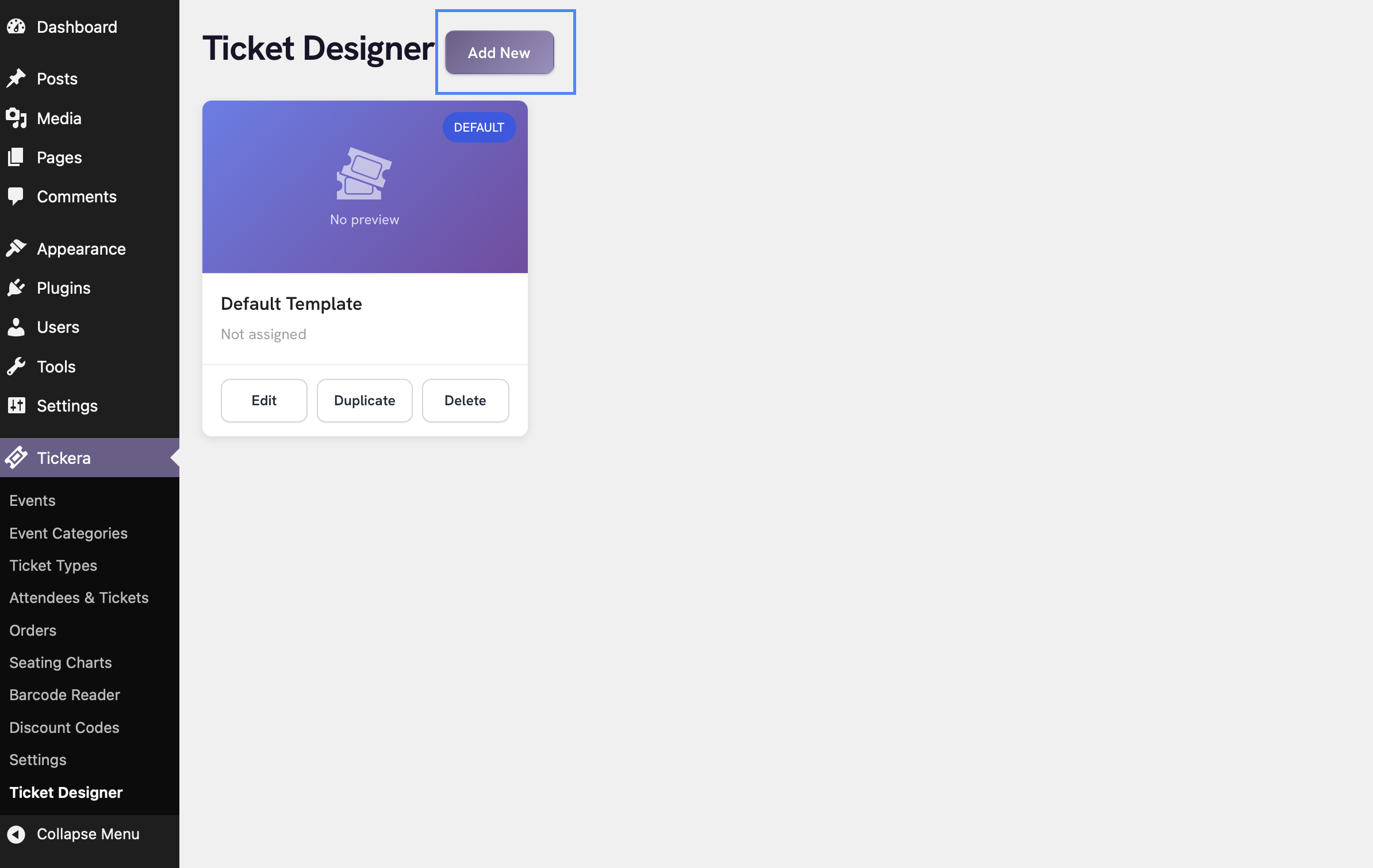
Navigate to the Ticket Designer section in the Tickera dashboard.
-
Click the Add New button at the top of the page.
-
This opens a blank canvas with the design workspace ready.
2. Utilizing Ready-Made Templates
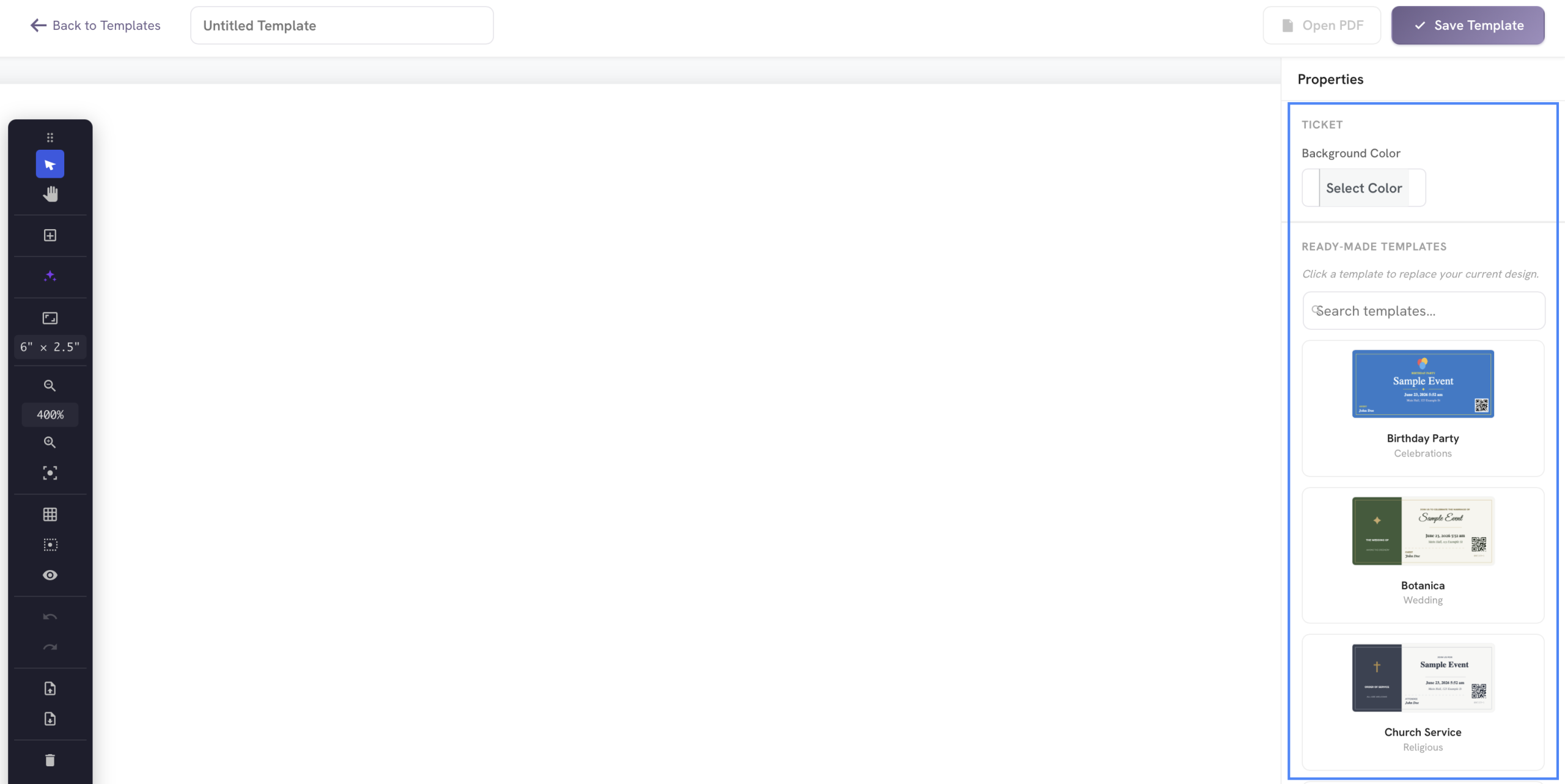
On the right sidebar, you will see a section labeled Ready Made Templates. These are pre-designed layouts categorized by event types (e.g., Birthday Party, Botanica/Wedding, Church Service, Concert, New Year’s Eve).
How to Apply a Template:
-
Scroll through the templates in the right sidebar.
-
Hover over a template to see a preview card showing its dimensions and details.
-
Click on your preferred template.
3. The Toolbar & Workspace Settings
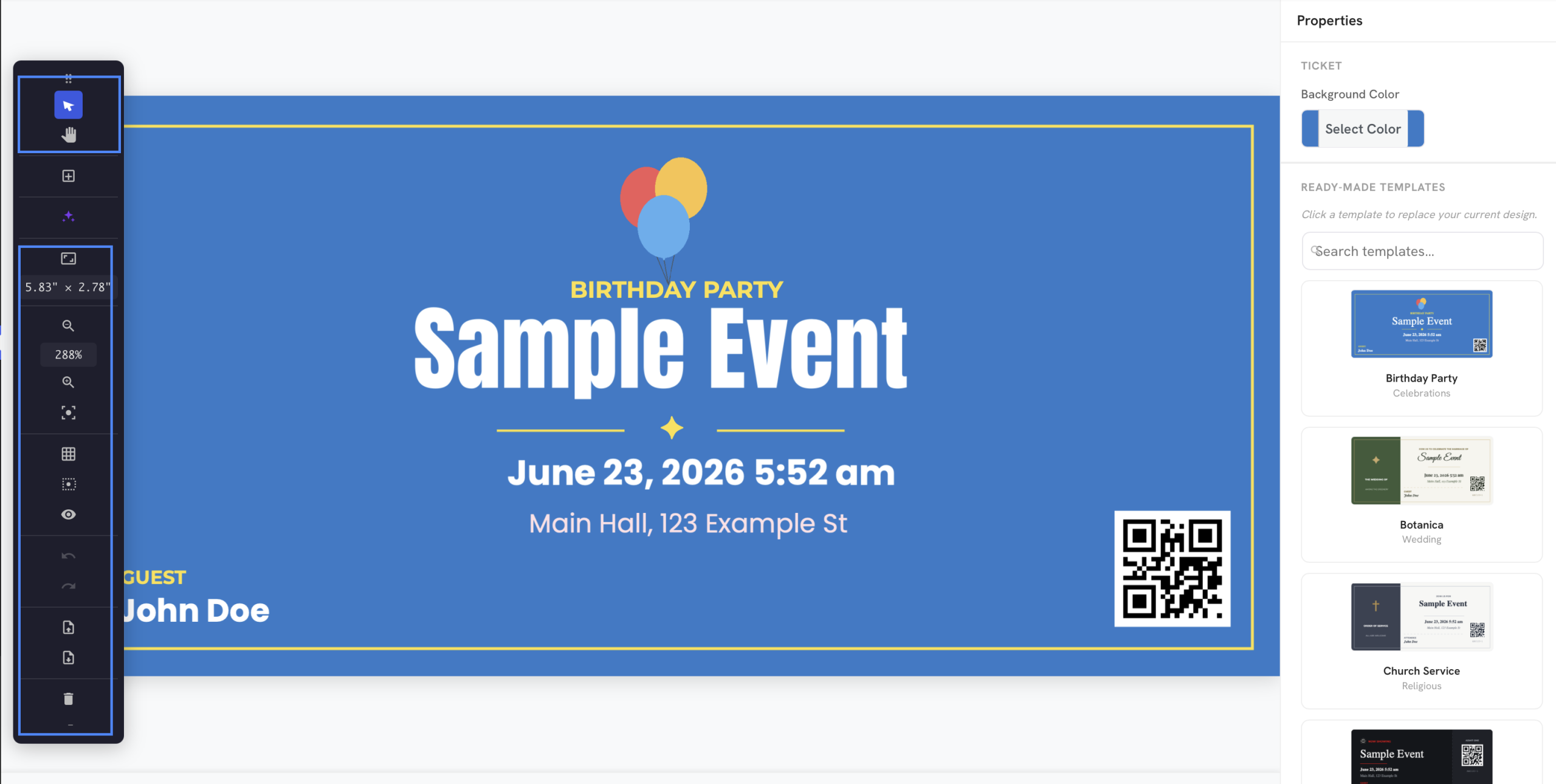
The vertical toolbar on the left side of the canvas houses all the controls needed to manipulate your ticket layout:
-
Select (V): The standard cursor tool used to click, select, drag, and resize elements on the canvas.
-
Ticket Size Dropdown: Allows you to quickly change the physical layout and proportions of the ticket. Options include:
-
Standard (, )
-
Concert ()
-
Compact ()
-
Large ()
-
Pass ()
-
Badge ()
-
A4, A5, A6 (Landscape & Portrait)
-
Custom Size…
-
-
Zoom Controls: Use the Zoom In (+) and Zoom Out (-) buttons to get a closer look at fine details or see the entire canvas. Use Fit to Screen to automatically snap the ticket size to your viewing area.
-
Toggle Grid: Turns a background alignment grid on or off to help you precisely position text and graphics.
-
Snap to Grid: When enabled, elements will automatically align to the nearest grid line when moved.
-
Show Elements Outside the Ticket: A visibility toggle that shows or hides elements that accidentally spill over the printable canvas borders.
-
Undo / Redo: Standard action history buttons to revert or re-apply changes.
-
Export / Import Ticket Template: Allows you to save your template design as an external file or import an existing layout.
-
Delete (Del): Removes the currently selected element from the canvas.
4. Adding Dynamic Ticket Elements
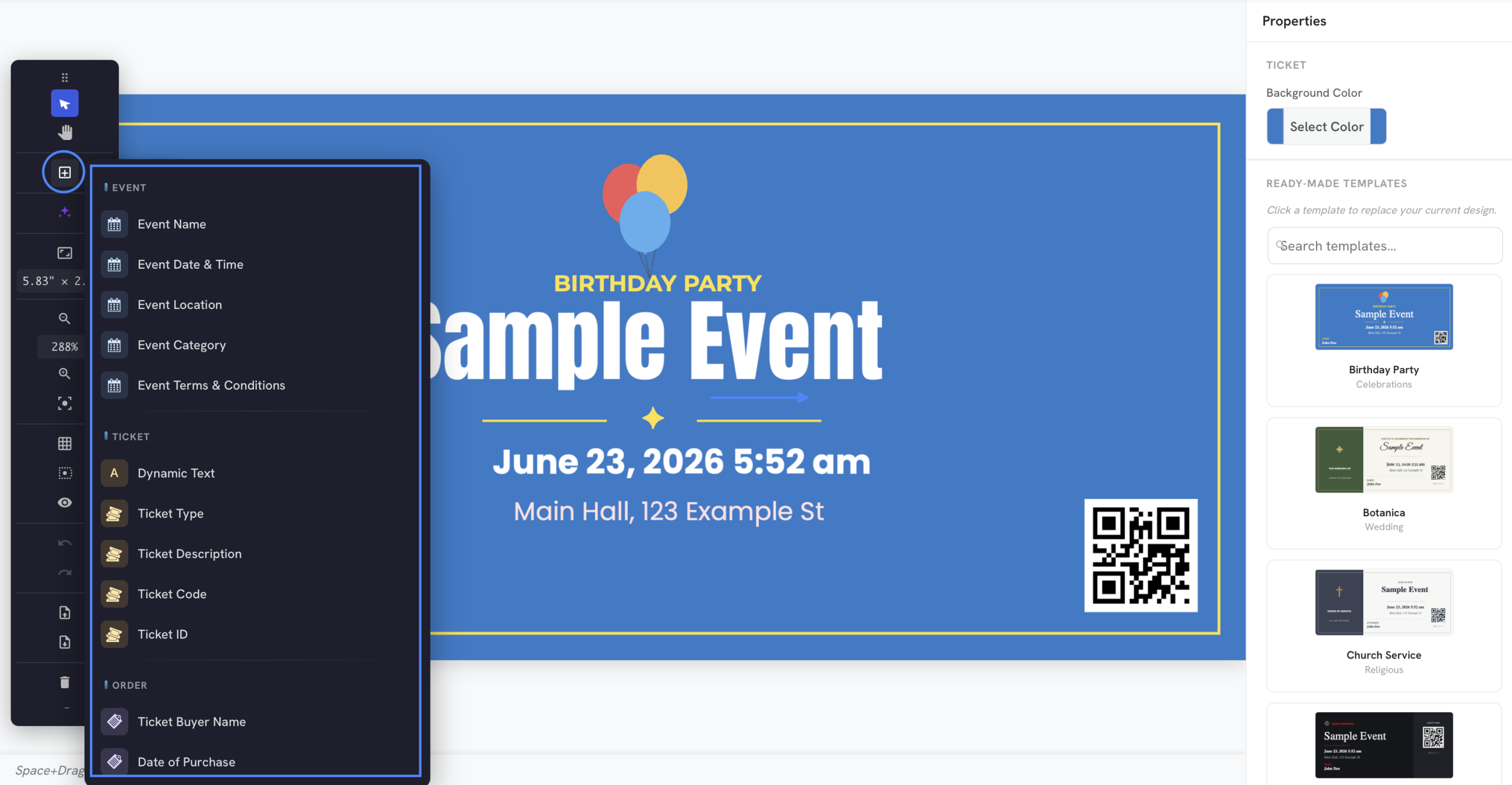
The primary power of the Tickera Ticket Designer lies in its ability to inject dynamic event and attendee data seamlessly onto the ticket. By clicking the Add Element (+) icon on the toolbar, you can insert the following blocks:
Event Data
-
Event Name: Injects the title of your event.
-
Event Date & Time: Displays the scheduled timeframe.
-
Event Location: Shows the physical venue details.
-
Event Category: Categorizes the event type.
-
Event Terms & Conditions: Inserts text regarding rules and policies.
Ticket & Order Info
-
Dynamic Text / Custom Text: Allows you to type fixed labels or messages.
-
Ticket Type / Ticket Description: Displays the specific tier (e.g., VIP, General Admission).
-
Ticket Code / Ticket ID: Unique alpha-numeric identifier used for check-ins.
-
Ticket Buyer Name / Ticket Owner Name: Dynamically displays the name of the purchaser or final attendee.
-
Date of Purchase: The stamp of when the transaction occurred.
Codes (For Check-in Validation)
-
QR Code: Automatically generates a scannable QR code representing the ticket URL/ID.
-
Barcode: Generates a linear barcode variant for traditional scanners.
5. Element Properties Sidebar
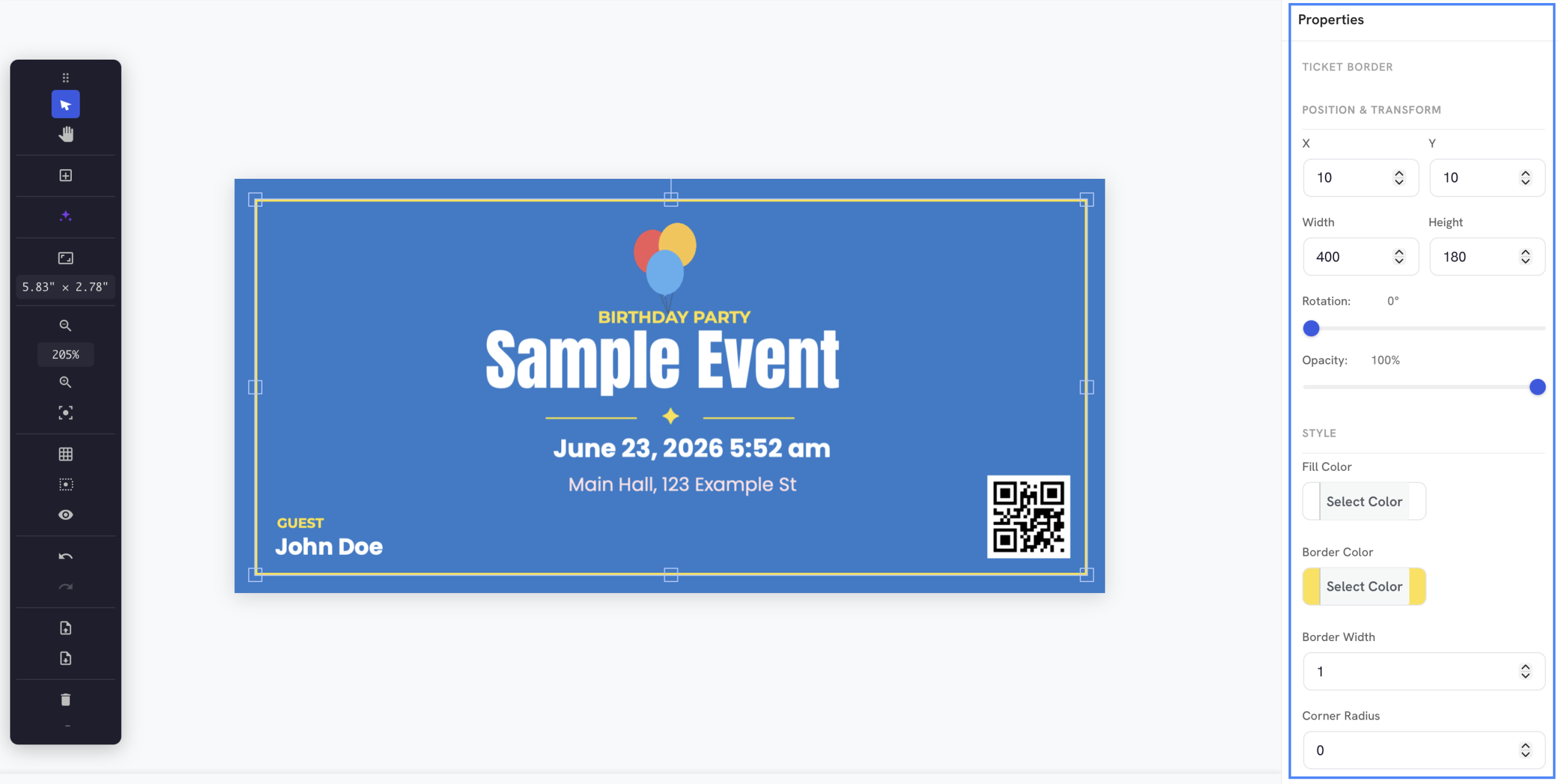
When you click on any element (such as an Event Name or QR Code) on the canvas, a Properties sidebar opens on the right side of the screen.
-
Position & Transform: Manually define the strict X and Y coordinates, Width, Height, and Rotation angle.
-
Text Formatting: Modify the opacity, font family (e.g., Arial), font size, styling, and custom label prefixes (e.g., adding
e.g., Date:fields). -
Hide if Empty: A checkbox feature ensuring that if a data point (like a middle name or a specific ticket description) is missing, it won’t leave awkward blank placeholders on the final printout.
7. AI Ticket Assistant
The AI Ticket Assistant allows you to generate completely custom ticket layouts or modify your existing design using natural language prompts.
How to Access the AI Assistant:
-
Locate the Magic Wand / Stars icon in the vertical left toolbar.
-
Hovering over it will display AI Ticket Assistant. Click it to open the generator modal.
Using the Assistant:
-
Prompt Input: In the text area, describe your ideal ticket layout in detail (e.g., color schemes, text placement, structural headers, or specific element arrangements).
-
Pre-made Suggestions: If you need inspiration, the assistant provides built-in prompt examples under the “Try:”section, such as:
-
Premium concert tickets with specific hex codes (e.g.,
#1e1e24). -
Elegant VIP passes with dark backgrounds and gold accents.
-
Clean minimalist festival layouts.
-
-
Canvas Control Checkbox:
-
Clear the current design before generating: Checking this box will completely wipe the canvas clean before rendering the AI’s new creation. Leaving it unchecked allows the AI to iterate or add to your existing design.
-
-
Generate: Click the Generate button to prompt the AI to build or adjust your canvas layout dynamically.
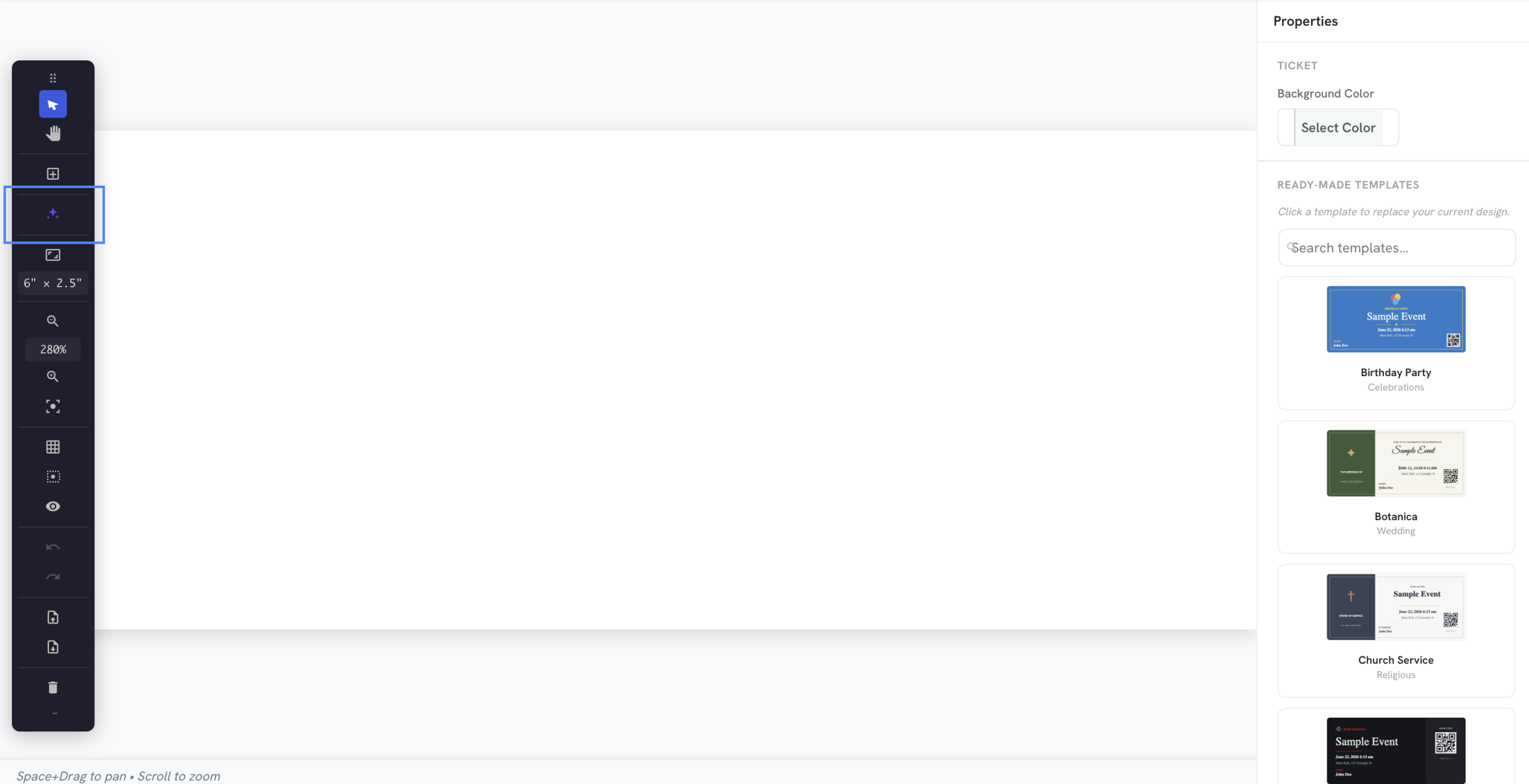
⚠️ Ensure your AI models are properly connected. If a model is not active or configured, the builder will display an error message at the bottom of the modal: “No models found that support text generation for this prompt.”
How to Configure AI Connectors:
-
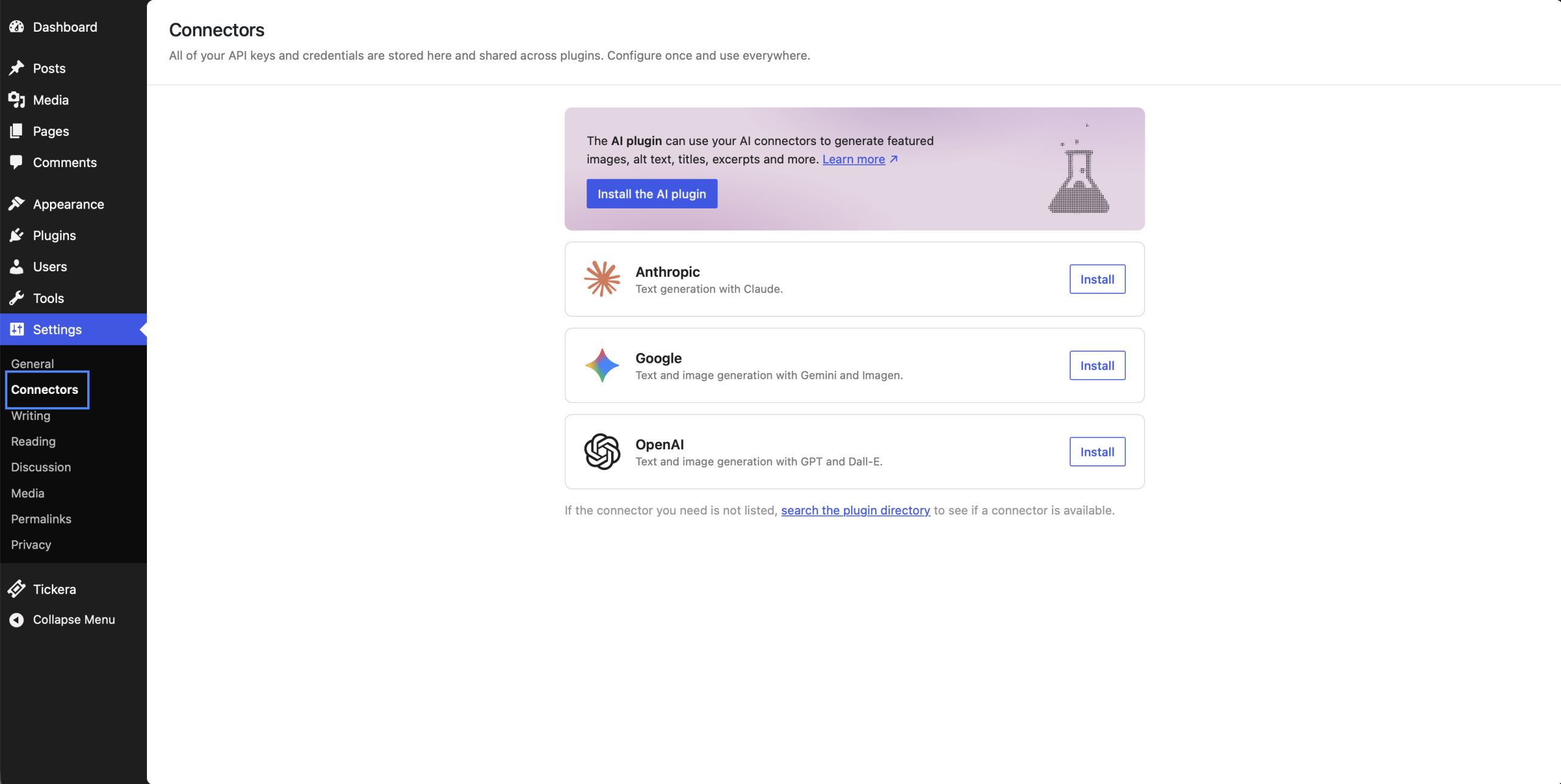
Navigate to Settings > Connectors from your WordPress admin sidebar dashboard.
-
In the Connectors control panel, all API keys and credentials are saved globally so they can be configured once and shared across your environment.
-
Locate your preferred AI service provider card and click Install:
-
Anthropic: Used for text generation layouts using Claude.
-
Google: Used for text and image generation leveraging Gemini and Imagen.
-
OpenAI: Used for text and image generation powered by GPT and Dall-E.
-
-
Input your provider-specific API credentials as prompted to activate the connection. Once connected, your models will instantly become available for the Ticket Designer’s AI Assistant canvas generation.
Was this article helpful?
Yes — great. No or partially? Tell us what was missing — we read every message and use it to improve these docs.