Slack Notifications
The Slack Notifications add-on posts a message into your team’s Slack channel every time a ticket is sold (or another configured Tickera event occurs). Useful for the “team-room celebration” of watching sales come in live, for sales-target tracking on launch day, and for real-time visibility into a marketing campaign’s impact without anyone having to log into the dashboard.
Slack Notifications add-on sends real-time alerts to your Slack channel every time a ticket is sold. If your team already lives in Slack, this keeps everyone in the loop without needing to refresh WordPress dashboards or emails. If you’re not using Slack yet… this add-on might be the reason you start.
What you need before you start
You’ll need a Slack workspace and a channel where notifications should appear. A free Slack plan is more than enough for this add-on. If you don’t have a workspace yet, head to slack.com and create one.
Configuration in Tickera
Once you install and activate the Slack Notifications add-on, a new Slack tab appears in Tickera Settings. This is where the connection to Slack is configured.
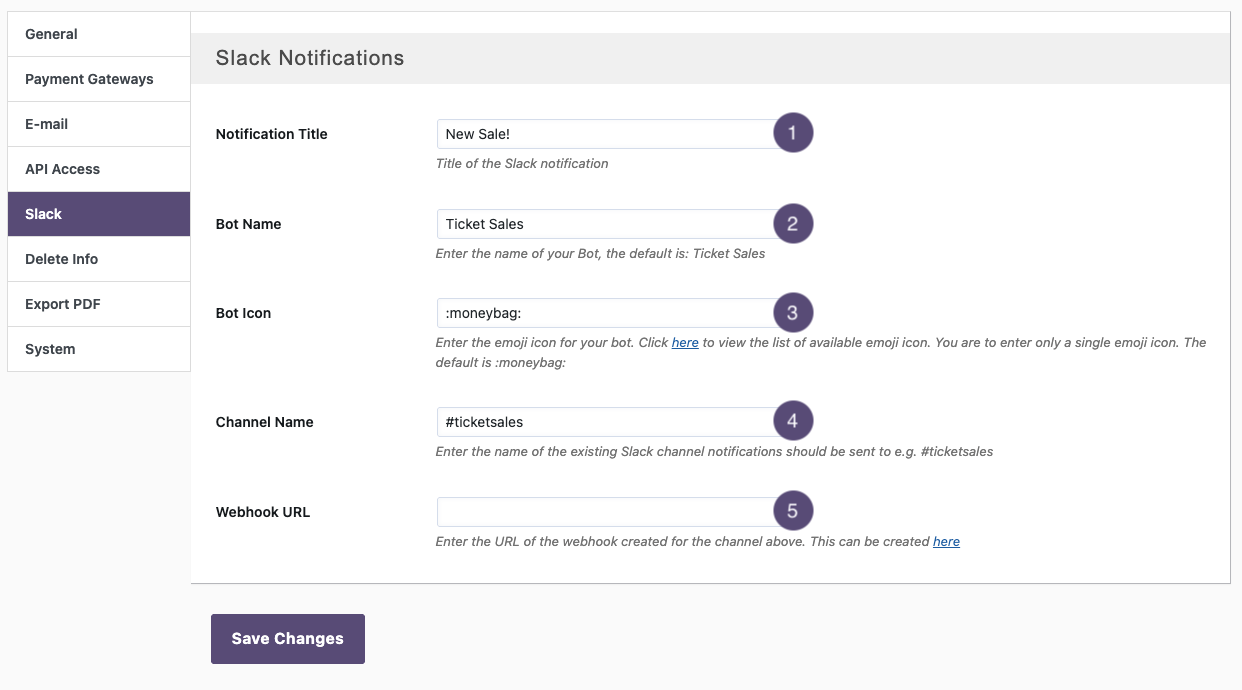
- Notification Title – This text becomes the headline of every Slack message. For example: “New Sale!” or “Ticket Sold”.
- Bot Name – Enter the display name that should appear as the sender of the notification. By default, it’s Ticket Sales, but you can rename it to whatever fits your workflow (e.g., “Nightclub Sales Bot”).
- Bot Icon – Slack supports emoji icons for bots. Enter a single emoji code (like :ticket: or :moneybag:). There is a link below the field that opens Slack’s emoji reference.
- Channel Name – Enter the Slack channel where notifications should be posted. Use the hashtag format: #ticket-sales.
Important: the channel must already exist in the Slack workspace. - Webhook URL – This is where Slack connects to Tickera. You need to generate an Incoming Webhook in Slack:
- Go to Slack -> Apps -> search for “Incoming Webhooks”.
- Add the app to your workspace and choose the channel where notifications should be posted.
- Slack generates a webhook URL.
- Copy the URL and paste it into the Webhook URL field in Tickera.
Once you save the settings, Tickera will start sending Slack messages whenever someone purchases a ticket.
Related questions
- Slack Notifications add-on
- Check-in Notifications add-on (for door-side alerts)
- Pushover add-on (push notifications)
Was this article helpful?
Yes — great. No or partially? Tell us what was missing — we read every message and use it to improve these docs.